
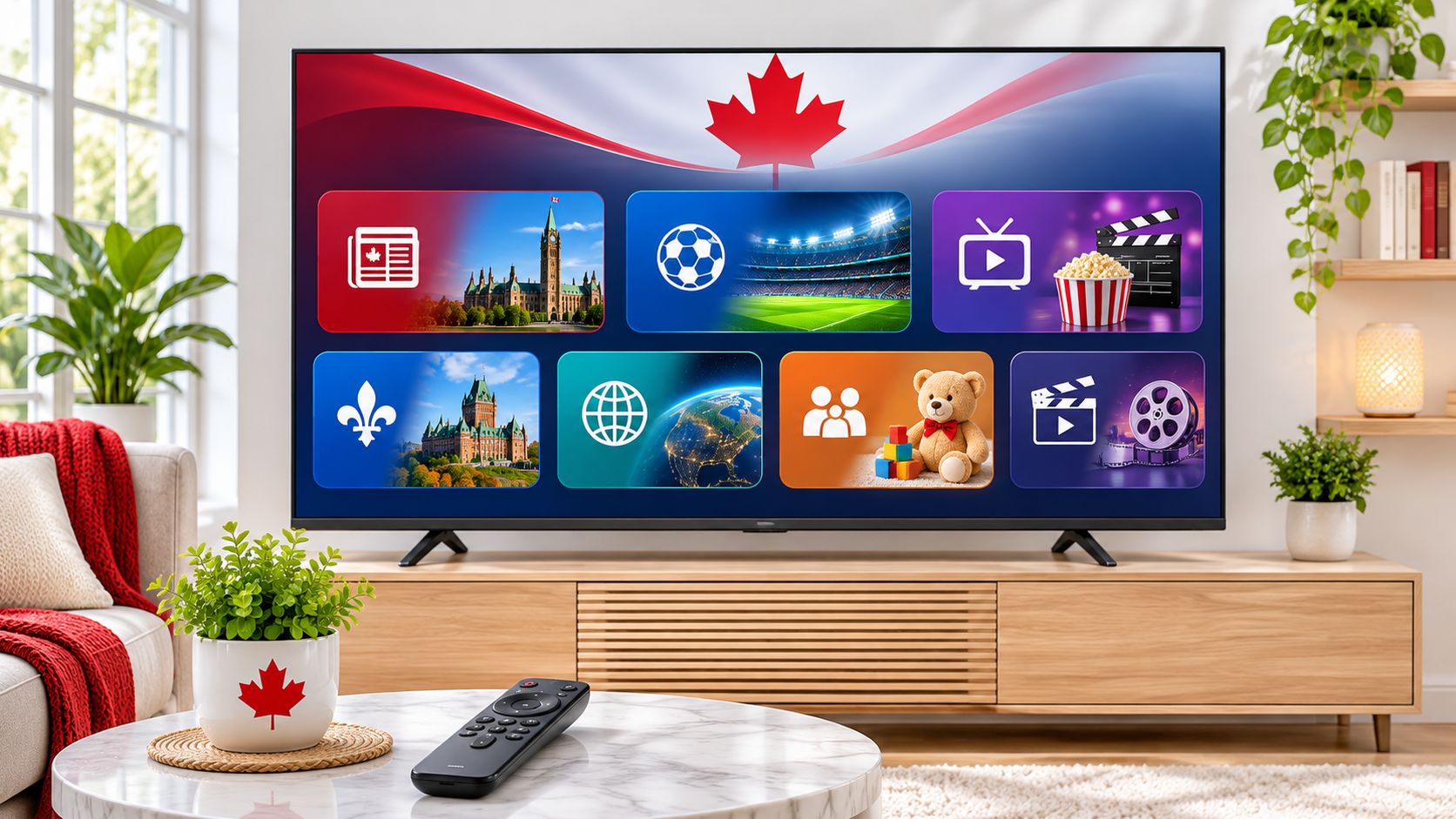
A good IPTV Channels List Canada guide does not just throw names at you. It groups Canadian news, entertainment, sports, international feeds, family picks, movie channels, and on-demand titles so you can jump straight to what you actually watch in 2026.
Just keep in mind availability comes down to package and content rights. Think of this as a handy reference for Canadian households, not a guarantee every channel will be live all the time.
IPTV Channels List Canada At a Glance
Start with what your household watches most, not a giant wall of logos. WATCHING FORCES describes its Canadian and international viewing options across live TV, sports, movies, and entertainment, but always double-check the exact lineup before you subscribe.
If you already know your must-have categories, explore WATCHING FORCES subscriptions at https://watchingforces.com to compare current options for your home.
Quick Reference for Canadian IPTV Channel Categories
Here is a simple way to scan the main categories before you dig into the details. Use it to match your viewing habits to the right package.
| Category | What Viewers Usually Find | Best For | What to Verify |
|---|---|---|---|
| Canadian news | National headlines, regional reports | Local viewers | Province and station |
| Canadian entertainment | Shows, lifestyle programming | Everyday viewing | Included channels |
| Sports | Events, analysis, highlights | Sports fans | Event rights and region |
| US and UK | News and entertainment | International viewers | Country and feed |
| French and multilingual | Language-based programming | Multilingual households | Audio and subtitles |
| Kids and family | Children’s shows, family entertainment | Shared viewing | Age suitability |
| Movie channels | Scheduled films | Film fans | Listings and schedules |
| On-demand titles | Selectable movies and series | Flexible viewing | Current catalogue |
That table is meant as a category lookup, not a confirmed list of stations or titles. Packages change, so confirm what is included in yours.
Find Your Categories and Check Your Setup
Say you are in Ontario and want local headlines. Head to the Canadian news part first, then confirm your regional station is covered.
A bilingual home might compare French programming side-by-side with Canadian entertainment. And if it is movie night, do not mix up scheduled movie channels with selectable on-demand titles — they work differently.
- Category sections break down news, sports, international fare, movies, and family viewing.
- Device cross-references show you navigation and player needs for Firestick, Android TV, Google TV, Samsung and LG Smart TVs.
- Household connection checks cover how many screens can watch at once.
- Troubleshooting and the FAQ help with missing channels and playback hiccups.
A listed channel isn’t proof of permission to distribute it. Confirm authorized availability before paying.
Distribution still needs the proper permissions, as outlined in this Canadian IPTV copyright and licensing discussion. If a regional feed or big event looks unclear, ask first instead of assuming it is included.
Before you pick a plan, review current channel information with WATCHING FORCES and make sure your favourite categories, devices, and household needs line up with what is actually offered.
Reading a lineup gets a lot simpler when you separate what you can watch from how you watch it.
Table of Contents
- IPTV Channels List Canada At a Glance
- Quick Reference for Canadian IPTV Channel Categories
- Find Your Categories and Check Your Setup
- How to Read a Canadian IPTV Channel List
- Canadian IPTV Glossary for Quick Lookups
- Check Regional Feeds Before Relying on Them
- What the Sports Category Helps You Verify
- A Channel Is Not the Same as an Event
- How Language and Region Categories Narrow the Search
- Verify Audio Subtitles and Regional Availability
- Plan A Family Movie Night
- Device Compatibility Reference for Canadian IPTV Viewing
- How to Check Fit on Your Screen
- Check Player Fit Before Subscribing
- Household Examples for Connection Planning
- Decision Checklist Before Choosing Connections
- Legal Authorized and Regional Availability Checks
- Check Travel and Regional Sports Access
- Troubleshooting Channel Playback and Finding Missing Channels
- FAQ: IPTV Channels List Canada Questions
- Conclusion: Choose by Categories, Connections and Compatibility
How to Read a Canadian IPTV Channel List
Live TV runs on a set schedule. On-demand content is different — you pick the film or episode and press play when it suits you. Keep those two apart when you compare lists, otherwise a big movie library can hide gaps in the live categories.
Work through the list in this order and note whether each part actually fits your household:
- Canadian news — check for both national coverage and your regional feeds.
- Entertainment — look for the day-to-day shows, series, and lifestyle channels you actually watch.
- Sports — confirm your specific league or event, not just a generic “sports” heading.
- International programming — check the countries and languages that matter to you.
- Kids and family — review what’s on and whether it suits the ages in your home.
- Movie channels — look at the scheduled film lineups, not just the count.
- On-demand titles — search for a few specific movies and series by name.
Say one household cares most about regional news and French-language entertainment. Another wants kids shows plus movies they can start anytime. Both are better off comparing those exact categories side-by-side across two lists, instead of picking whichever one shouts about more channels.
Canadian IPTV Glossary for Quick Lookups
Run into a strange label on a channel list or setup screen? Use this as a quick reference.
| Term | Plain-Language Meaning |
|---|---|
| EPG | Electronic programme guide showing scheduled programmes and times. |
| M3U | A playlist format players can use to locate streams. |
| Xtream Codes | A login method supported by some IPTV players, using service details and account credentials. |
| SD | Standard definition, a lower-resolution picture category. |
| HD | High definition, offering more picture detail than SD. |
| 4K | A resolution category above HD, requiring compatible content and equipment. |
| 8K | A higher-resolution category, not a guarantee for individual streams. |
WATCHING FORCES lists viewing quality options, but the real picture you get still comes down to the content offered, your device, your player, and your home connection.
A resolution label isn’t a promise that every channel streams at that quality.
Before you judge navigation or playback, have a look at the Device Compatibility and Player Cross-References section. And to match your setup properly, ask WATCHING FORCES support which access method your player needs before you enter any account details.
Start with Canadian news when you want national headlines, provincial updates, and community stories in one place. WATCHING FORCES describes Canadian viewing options that bundle national and regional news with homegrown entertainment and lifestyle channels.
For this IPTV channels list Canada guide, check those groups separately. National coverage alone doesn’t mean your local station or regional edition is carried.
- National news is where you’ll find coverage of Canadian headlines and country-wide issues. Use it when you want the bigger picture, not one city’s newscast.
- Regional and local news covers provincial, city, and community feeds. Always confirm the actual station and feed, not just a familiar network logo.
- Canadian entertainment and lifestyle is for everyday domestic shows and entertainment. Check it after your news must-haves are covered.
Use the at-a-glance table for quick definitions before you compare packages. Keep a short list of must-have stations next to your entertainment picks, so you don’t miss either one.
Check Regional Feeds Before Relying on Them
Ontario lookup example: Start in the news category when you want regional headlines plus lifestyle shows. Pin down the right local feed first, then move over to entertainment or lifestyle. That’s faster than chasing one channel name through the whole directory.
Regional lineups can vary by package, so confirm what local stations are actually included before you count on them for daily viewing. One province’s listing doesn’t guarantee another region is covered.
- Confirm the location tied to each news feed you need.
- Check the schedule against the regional bulletin you watch.
- Test entertainment separately with a lifestyle programme you know well.
A familiar channel name isn’t enough. Verify the regional feed and the programming you need.
News and entertainment are handy first checks during an eligible free 24-hour trial, where offered. You can test navigation, listings, and playback for yourself. Check the FAQ if a local channel shows up under a heading you didn’t expect.
Before you subscribe, ask WATCHING FORCES support to confirm your local stations, package details, and current trial eligibility for the device you plan to use.
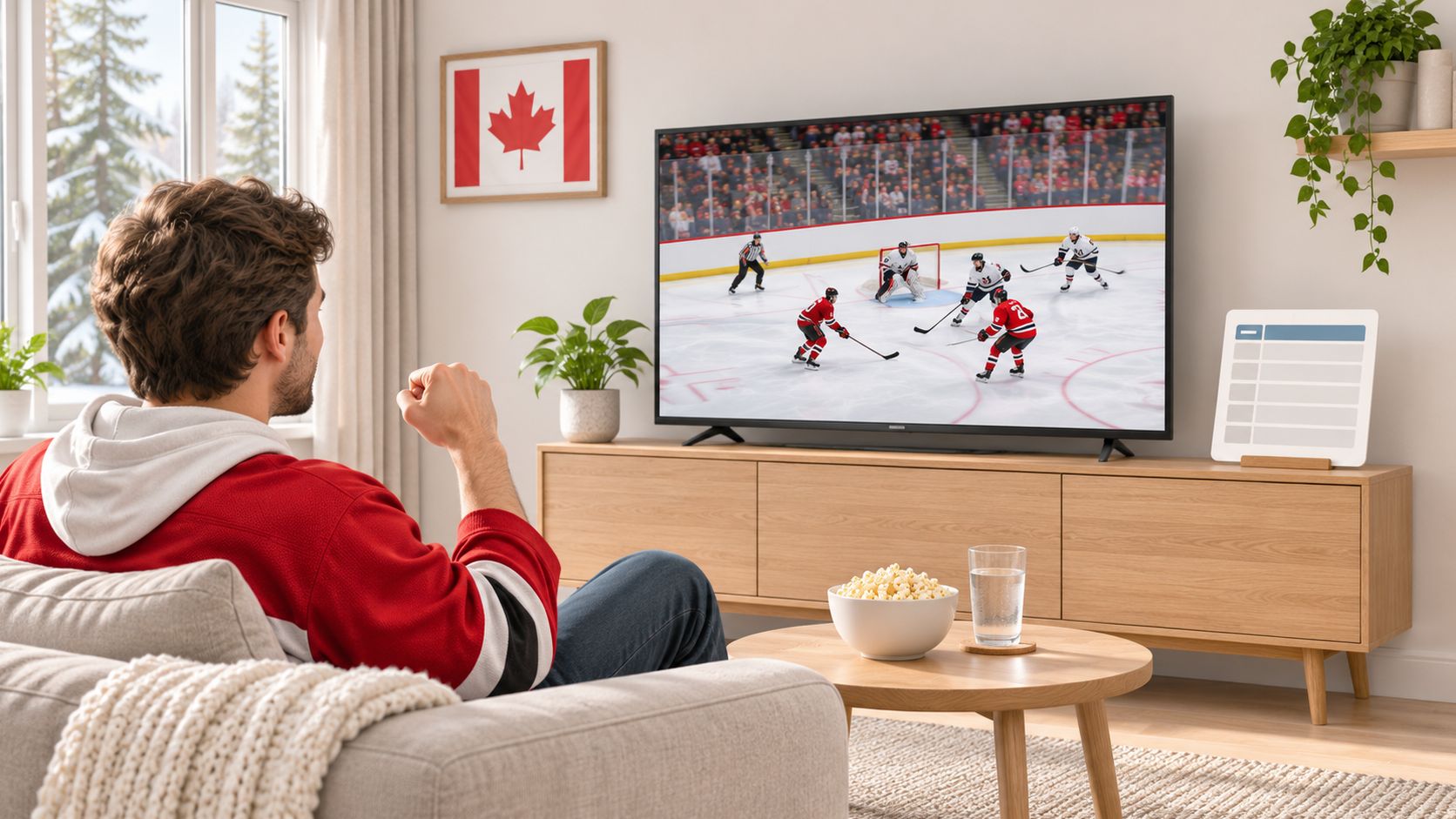
Sports is where a big channel number can fool you. You might see dozens of sports channels listed, yet still miss the one league or matchup you actually want to watch.
Rights change by region and by season. That is why sports needs a harder look than any other part of an IPTV channels list Canada. Think of it as a checklist to verify, not just a category to scroll through.
What the Sports Category Helps You Verify
Open the sports section first and confirm three things:
- Live event coverage — does the kind of game you follow show up in the schedule?
- Programme listings — does the EPG list the broadcasts and start times you expect?
- Related programming — are highlights, analysis, and pre-game shows included around those events?
Canadian hockey fans will often spot NHL coverage and listings tucked into the lineup. You can compare how those nights get reported against NHL results from 9 November 2026 to get a feel for schedules and final scores.
A Channel Is Not the Same as an Event
This is the mix-up that catches most new subscribers. A channel can be in your package while a single event on that channel is blacked out where you live.
Weekend planning example: Say you are having friends over for Saturday night hockey. Check the channel and the actual event listing before you pay. If that game is not in the guide, ask support why before game day.
A channel in the lineup is not a promise that every event on it is available to you.
Regional rights and availability rules are behind most of those gaps. Have a quick read of the Legal Authorized and Regional Availability Checks section before you assume a match is included. Only authorized viewing is worth building your plans around.
Watching with family? If everyone wants something different at the same time, check the Quick Reference for Household Setups and Connections section. How many screens you can run comes down to connections, not channel count.
And when an event looks unclear, ask WATCHING FORCES support directly instead of guessing.
For a lot of multilingual households, international programming is the whole reason to open an IPTV channels list Canada in the first place. WATCHING FORCES describes its catalogue as covering Canada, the United States, the United Kingdom, France, Germany, and other language markets, so it goes well past domestic channels.
The easiest way to use it? Treat each language group like its own mini-directory. Instead of scrolling one endless list, open the language or region category for your household and work out from there.
How Language and Region Categories Narrow the Search
- US programming — check for the American news, entertainment, and network feeds your household actually follows.
- UK programming — look for British channels and series, and confirm which feeds are carried.
- French programming — verify French-language channels, and whether they lean Canadian or European.
- Other language markets — browse by language group first, then confirm the specific channels inside.
Bilingual household example: One family puts French entertainment side-by-side with English-language Canadian shows before picking a package. They open both categories, write down what channels are really in each one, and only then decide. That quick comparison beats choosing whichever list just looks longer.
Verify Audio Subtitles and Regional Availability
Just because a channel shows up in a category does not tell you how it sounds. Before you count on a programme, confirm three details:
- Audio tracks — the original language might not be the only option, or it might not be offered at all.
- Subtitle support — check whether subtitles exist in the languages your household reads.
- Regional availability — a channel listed for one market can behave differently for another viewer.
Never assume every programme offers every language option. Audio and subtitle choices vary title by title.
If you want a domestic base before you add international categories, revisit the Canadian News and Local Coverage Categories section. And if your household jumps between a few language groups, the Device Compatibility and Player Cross-References section covers navigation that keeps switching simple.
No language market is universally better than another. Each one just suits a different household, so match the categories to the people who are actually watching. When language details matter, ask WATCHING FORCES support to confirm audio and subtitle options before you subscribe.
Live movie channels are perfect for those nights when you just want to flip on the TV and follow what's playing. An on-demand library, on the other hand, lets you pick the film and press play whenever you're ready. In this IPTV channels list Canada breakdown, think of those as two separate ways to find something to watch.
WATCHING FORCES describes its viewing options as live television, movies, and on-demand programming all in one place. Still, double-check the actual titles before you buy — don't just assume the movie or show you want is included.

- Movie channels run films on a set schedule. Have a quick look at the programme guide for start times before you settle in.
- Series categories make it easier to track down episodic shows. Search by programme name, then confirm you've got the right season and episode.
- Kids and family titles live in their own browsing section. Use your own judgement on age suitability instead of treating the label as a parental guarantee.
- On-demand browsing lets you filter by title or genre. Keep an eye on newly added rows where they're offered, just don't assume "newly added" means brand-new releases.
Plan A Family Movie Night
Say it's Friday and the family can't agree on a film. Start with the on-demand library and look for an age-appropriate comedy everyone will enjoy. If nothing jumps out, switch over to the live movie channels and see what's starting soon.
Here's a quick routine to run through before the popcorn's ready:
- Browse by genre to trim the list down fast — comedy, animation, drama, whatever fits the mood.
- Check title details for running time, language options, subtitles, and age guidance where it's listed.
- Review live listings if the library comes up empty.
A channel directory isn't a permanent film catalogue. Lineups shift with packages and distribution rights, so confirm current, authorized availability before you plan the night around one specific release.
For smoother browsing on Smart TVs, Firestick, or Android TV, have a look at the Device Compatibility and Player Cross-References section. The FAQ also covers related questions on lineup availability and missing content — and for anything on-demand related that’s still unclear, check directly with support.
Before you subscribe for movie nights, ask WATCHING FORCES about current library access, the specific titles you're after, and how navigation works on your family's main TV.
Match the channel directory to your device and player before you pay for anything. A good Canadian lineup should feel simple to browse on the screen you actually watch on.
Device Compatibility Reference for Canadian IPTV Viewing
Different boxes and apps handle categories, favourites, and guides in different ways. Use this quick lookup to match your gear to the right setup path before you compare plans.
| Device type | Common setup path | Player choices to check | Practical note |
|---|---|---|---|
| Smart TVs | Model-specific app guide | IBO, VIVO, BOB availability | Check remote layout and free space |
| Firestick and Android boxes | Device installation guide | TiviMate or supported alternatives | Check favourites and app storage |
| MAG boxes and Formuler | Model-specific configuration | Supported portal or built-in player | Confirm remote shortcuts |
| Chromecast | Casting or device-specific app | Sender or installed app | Verify generation and controls |
| Apple TV and Roku | Platform-specific instructions | Confirm supported apps first | Check search and storage |
| Phones and tablets | Mobile installation instructions | Compatible mobile player | Test touch controls |
| Laptops | Computer-specific instructions | Supported desktop or browser option | Check keyboard navigation |
Treat these as setup paths to verify, not a promise that every player runs the same on every model.
How to Check Fit on Your Screen
WATCHING FORCES lists supported equipment and setup resources, including Smart TVs, Android boxes, Firestick, MAG boxes, Formuler, Chromecast, Apple TV, Roku, phones, tablets, and laptops.
Still, double-check your exact model, operating system, and install method. Two TVs from the same brand can need totally different steps. Samsung Tizen and LG webOS models, Google TV and Android TV devices, and Firestick models can each need different install steps.
Check Player Fit Before Subscribing
A Firestick owner who wants a remote-friendly layout is a good example. Open the WATCHING FORCES install guide first, then see how categories, favourites, and listings react to the directional pad.
It saves a lot of hassle later.
- Compare IBO, VIVO, BOB, and TiviMate via the WATCHING FORCES IPTV player comparison
- Confirm compatibility for your model
- Check for any separate player licence needed, paid in CAD where applicable
- Confirm the device model and install route.
- Test navigation with your usual remote.
- Review the household connections section before adding screens.
Device support doesn't mean identical menus or perfect playback.
Thinking about a new phone for mobile watching? You can browse refurbished Apple iPhones, but confirm app requirements separately.
For glitches, head to the troubleshooting section. And before you subscribe, ask WATCHING FORCES support to confirm your device and player combination.

A big channel list means nothing if everyone wants to watch something different at the same time. WATCHING FORCES offers multi-device subscriptions with one to five connections, so each person in the house can stream on their own screen.
Think about it that way when you browse the lineup. With only one connection, you get one screen at a time. Depth in your favourite categories matters more than total numbers.
Household Examples for Connection Planning
Real homes usually fall into one of these:
- Solo viewer — one connection is enough for the living room TV, and you get the whole list to yourself.
- Couple — two connections mean one can catch the game while the other watches a series on a tablet.
- Family with children — three or more connections keep the kids happy in family and kids sections while parents put on news or a movie.
- Sports-heavy household — you may need several screens going at once when games overlap on the same night.
Decision Checklist Before Choosing Connections
Ask yourself these three quick questions:
- How many rooms need live TV at once on a busy evening?
- Does anyone watch on a phone or tablet away from the main TV?
- Do the kids need their own access while adults watch something else?
It is connections, not channel count, that decides if your house can actually watch together — separately.
Still unsure? An eligible 24-hour trial, where offered, is a handy way to test categories and setup on your devices before you pay. Trial availability can change, so confirm current terms directly with WATCHING FORCES.
If playback stutters after setup, jump back to the Device Compatibility and Player Cross-References section and the troubleshooting notes later in this guide. And if you are stuck on connection counts, ask WATCHING FORCES support which option fits your screens before you subscribe.
A channel list is great for finding what's on, but it doesn't prove you are allowed to watch it. Always double-check any listing against your package, your location, and the actual programme you want to see.
Legal Authorized and Regional Availability Checks
When we say authorized content in this IPTV Channels List Canada guide, we mean programming that comes with the proper permission to distribute it. Just because something uses IPTV technology doesn't mean rights are cleared, as this discussion of Canadian IPTV copyright requirements explains.
Sort this out before you pay for anything:
- Distribution rights – whether a provider is allowed to supply that channel or programme
- Regional availability – where it can be watched under current agreements
- Event availability – rights for that specific broadcast, not just everything under the channel name
Just because a channel is listed doesn't mean every show on it is available everywhere, all the time.
Take a minute to read the service terms for geographic limits, lineup changes, and any noted exclusions. For general background, have a look at the WATCHING FORCES guide to IPTV legality in Canada — helpful context, but not proof that a specific channel is cleared.
Check Travel and Regional Sports Access
Travelling soon? Check if your subscription still works in your destination country before you leave. A channel that works fine at home in Canada might show different programmes abroad.
Watching regional hockey? Don't rely on the channel name alone. Confirm the exact game, your province, the date, and which feed you will get. Blackouts can still apply, even when the channel is included.
Here's a quick way to avoid surprises:
- Pin down the exact programme or game you want
- Check your plan details and any geographic rules
- Ask support to confirm authorized availability before game day
For more lookup help, jump back to Sports and Live Event Categories in the Lineup for event notes, and check the FAQ if a channel seems to be missing. If an event isn't available to you, don't try to work around the restriction.
Still unsure about a channel or event? Contact WATCHING FORCES support first, then review current subscription information to pick the package and terms that suit you best.
A missing channel and a frozen stream aren't the same problem. Run through this quick reference next to your IPTV Channels List Canada categories before you change anything in your setup.
Troubleshooting Channel Playback and Finding Missing Channels
Stick to safe checks first. Nothing here will wipe your saved settings or ask for new login details. Just note whether it's one channel, a whole category, or everything that's acting up.
1. Confirm your internet connection. Open a site you use every day, or try another streaming app to see if anything else loads.
2. Refresh the player. Close the app fully and open it again, then use the menu option to refresh the channel list.
3. Restart your device. Power it off, wait a moment, then try playback again before you touch anything else.
4. Check category and search settings. Clear favourites, switch back to the full directory, and search with a shorter version of the station name.
For more category-specific checks, have a look at the WATCHING FORCES guide to incomplete Canadian channel lists.
| Symptom | Next Safe Check |
|---|---|
| Buffering | Confirm internet access and restart playback |
| One channel won't load | Try another channel and record the affected name |
| Missing categories | Refresh the list and check active filters |
| EPG mismatch | Refresh guide data if your player provides that option |
| Changed behaviour after an update | Reopen the app and review its installation instructions |
Find Regional Channels and Know When to Stop
Regional news example: Can't find your local bulletin? Check the Canadian news and regional categories first, then search by the station name instead of the programme title.
After that, jump back to Device Compatibility and Player Cross-References and follow the install guide for your exact device and player. If the channel is still missing, ask support to confirm what is included in your current package and what is authorized in your area.
- Several affected devices or channels: Stop repeating resets and contact support.
- Simultaneous viewing trouble: Go back to Quick Reference for Household Setups and Connections and check how many connections your plan allows.
Troubleshooting cannot guarantee uninterrupted playback, perfect EPG accuracy, or access beyond content rights.
Send your device model, player name, affected channels, error message, and checks you've already done to WATCHING FORCES support on WhatsApp so they can point you to the right next step.
Think of these answers as your last check before you pick a plan. The categories above cover how to browse, while the device and legal notes cover setup and rights.
FAQ: IPTV Channels List Canada Questions
What Does a Typical Canadian IPTV Lineup Include?
A lineup keeps live channels separate from on-demand titles, then splits everything by topic, language, or region. WATCHING FORCES describes its viewing options across Canadian television, sports, movies, and international entertainment.
- Scheduled viewing includes news, lifestyle, sports, and movie channels.
- Selectable viewing covers movies and series you start yourself.
As a quick example, check the live movie guide for what is on tonight, but use the on-demand search when you want to start a film right away.
Are Canadian News and Regional Categories Included?
Canadian national and regional news is usually listed, but always confirm your exact station and feed before you subscribe. Go back to Canadian News and Local Coverage Categories when you compare provincial coverage, and check authorized availability instead of trusting the network name alone.
Category coverage isn't confirmation that every local station or programme is included.
How Do One to Five Connections Affect Viewing?
Your connection limit controls simultaneous streams, not how many channels you get. Confirm the current one-to-five connection options with WATCHING FORCES.
- Count how many screens you use at the same time.
- Match that number to your allowance.
For instance, news on the living room TV plus a series on a tablet means you need two connections at once. Double-check device compatibility before you add more gear.
Why Is a Channel Missing or Not Playing?
Check your category filters, refresh the list, and restart your player. Follow the missing-channel troubleshooting guide, then contact support if it still will not play — rights restrictions are not a technical fault.
Is the Advertised 24-Hour Trial Available?
Confirm eligibility and current terms with WATCHING FORCES before you plan your test. Where offered, the free 24-hour trial helps Canadian viewers check categories, players like IBO, VIVO, BOB and TiviMate, and device compatibility.
How Do I Confirm Prices and Renewals in CAD?
Verify current subscription and renewal prices in Canadian dollars (CAD) on https://watchingforces.com before paying, as plans and bonus-month offers can change.
Conclusion: Choose by Categories, Connections and Compatibility
Pick by categories, connections, and compatibility — not by total channel count. Shortlist your news, sports, multilingual and family must-haves, match them to your Firestick, Smart TV or Android device, and confirm authorized availability first.
Visit WATCHING FORCES for current channel and subscription information, or request support on WhatsApp with your device and viewing questions.

No Responses