

The puck drops in six minutes. The TV is on the wrong HDMI input, and once you find the channel list, the game is buried under a long scroll. Your subscription may be working properly; the player can still make finding and watching a channel frustrating.
The app matters because it controls how you browse and play the channels in your playlist. Canadian IPTV service penetration rose from 20% of households in 2019 to 35% in 2023, according to the CRTC broadcasting report. A player that fits your device and handles its guide well can make a large channel list easier to use.
Each app is judged on four practical questions for Canadian households: which devices it supports, whether it accepts M3U, Xtream Codes or Stalker Portal details, how its guide handles a large channel list, and how quickly a non-technical user can reach the first channel.
A player displays the playlist you provide; it does not supply channels. IPTV is a distribution service, separate from the player software that renders it. That distinction matters because two apps with similar screens can behave differently with the same provider login.
Table of Contents
- 1. TiviMate
- 2. Sparkle TV
- 3. IPTVX
- 4. UHF
- 5. Televizo
- 6. OTT Navigator
- 7. Smart IPTV (SIPTV)
- 8. Smarters Pro
- 9. VLC media player
- 10. IBO Player Pro
- How the 10 IPTV player apps compare on device support, playlist formats, guide features and best use
- Choosing a Player You Will Still Use Next Month
1. TiviMate
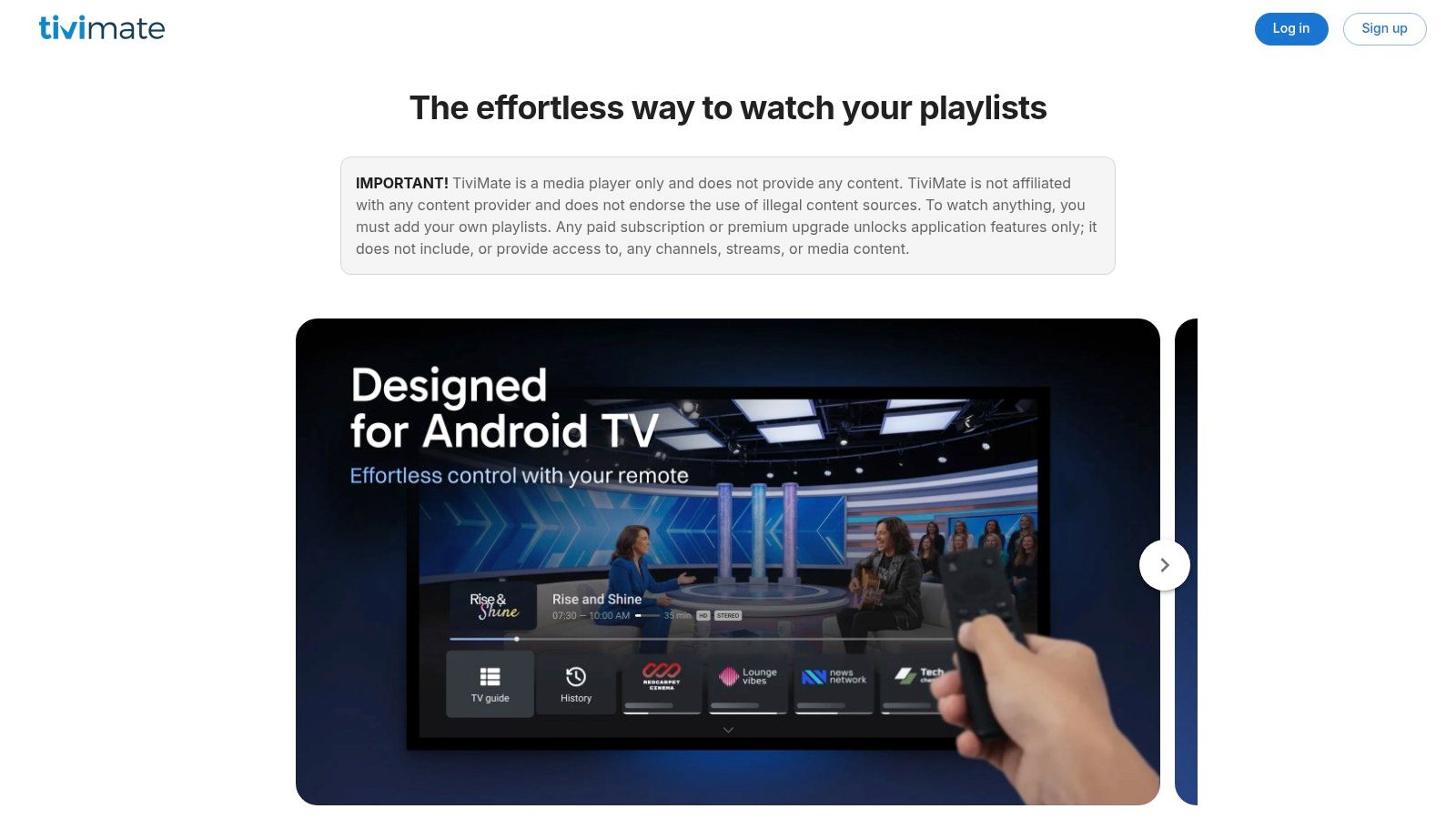
TiviMate is the app I reach for when the television belongs to someone who watches television, not settings. It's built for Android TV and Google TV devices, with a remote-first layout, a real timeline guide, and enough configuration to make a large playlist feel organised instead of dumped on screen.
The Canadian case for a TV-first player is strong. CRTC-cited Media Technology Monitor data puts connected-TV ownership at 76% of Canadian adults in 2024, and independent Canadian research found 37% of adults streamed television or video on a connected or smart TV in a typical week, against 16% on computers and 12% on smartphones (CRTC report). The app should be assembled for the room where the viewing happens.
The guide view on a living-room screen, which is exactly where this app expects to live:
What it handles
Playlist formats: M3U, Xtream Codes and Stalker Portal logins.
Guide and navigation: favourites, search, multiple playlists, custom channel groups, and a guide that stays readable with thousands of entries.
Extras: catch-up, recording and multiview, but only where your provider exposes archive and your device has storage to spare.
The honest limits are platform and expectation. TiviMate isn't a phone app, and the premium purchase buys player features, not channels or streams. If a channel is dead, the app can't revive it.
Practical rule: load your Xtream login, then spend ten minutes hiding the categories nobody in the house watches. A trimmed list speeds up navigation more than any setting inside the app.
Firestick owners should sort the device settings before installing, and our Firestick IPTV apps guide covers that sequence. Official site: TiviMate.
2. Sparkle TV
Sparkle TV targets the same living room but answers a different question: can this box replace a PVR? It runs on Android TV, Google TV and Fire TV, reads M3U and Xtream sources, and can combine a playlist with compatible local tuners and media servers on the same network.
Where the free tier stops
Core playlist playback, channel logos and programme information work without paying. Plus adds DVR, timeshift, video on demand and multiple sources. Prices and purchase routes shift, so confirm on the Sparkle TV site instead of trusting a two-year-old tutorial video.
Recording changes what you need from your connection. Statistics Canada reports that 97.1% of Canadian households had broadband meeting the CRTC's 50 Mbps download and 10 Mbps upload benchmark in 2024 (Statistics Canada). That's a baseline for a household, not a guarantee for a house where two people watch separate streams while a third recording runs.
The trade-offs are plain. Some useful features sit behind Plus, the interface assumes a remote rather than a finger, and purchase options can change between regions. If your household never records anything, you're paying for capability you won't touch.
If nobody in the house has asked to record a game, skip the DVR tier and spend the difference on a wired connection to the TV instead.
3. IPTVX
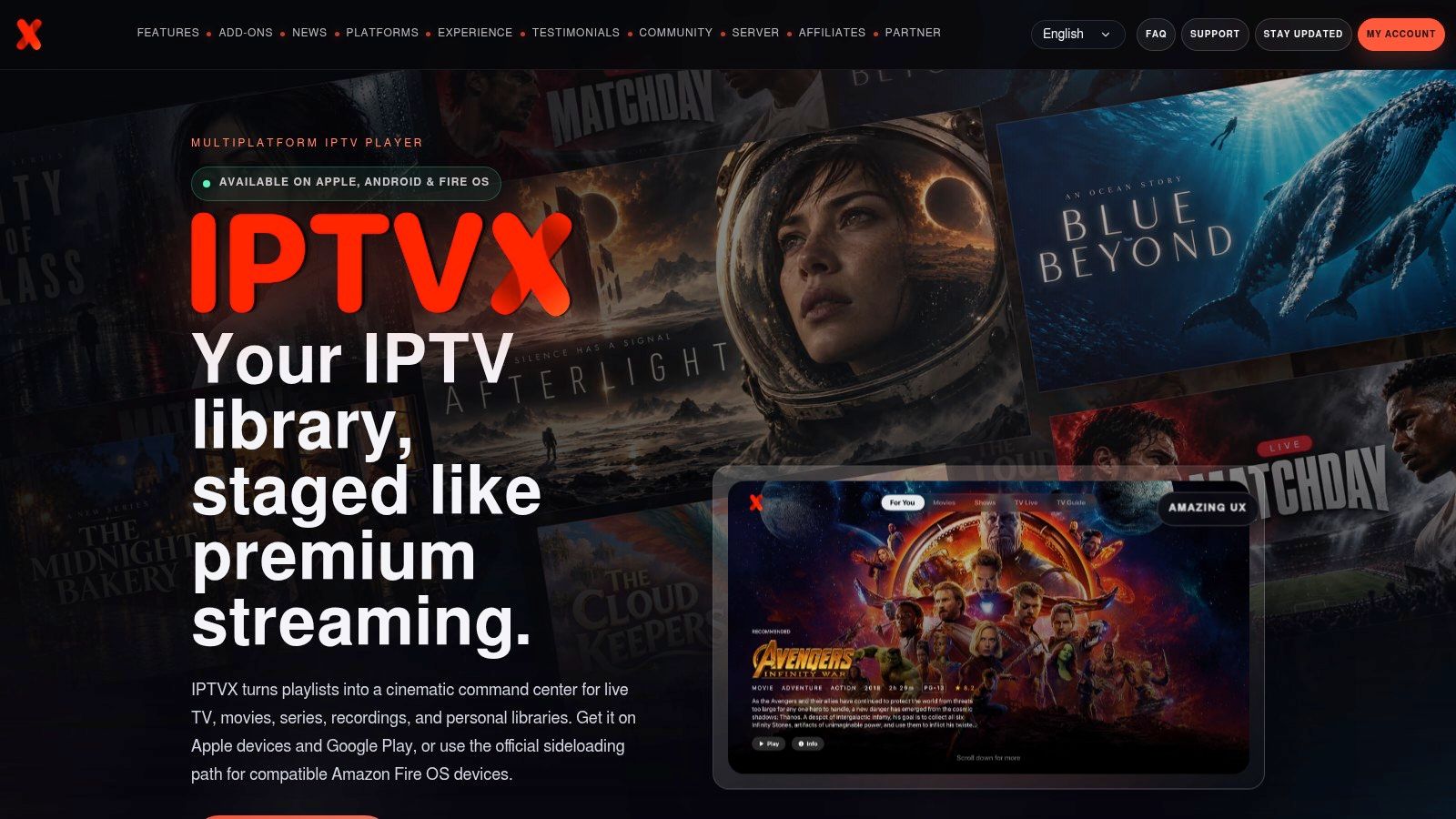
IPTVX is the Apple-household answer. It runs on Apple TV, iPhone and iPad, takes Xtream and M3U sources, and folds in Plex and SMB libraries so a personal media collection sits beside live channels in one interface. iCloud sync, AirPlay and picture-in-picture are the features that make it feel native rather than ported.
Formats and the guide
Xtream API, M3U and M3U8, plus EPG, catch-up, multiple playlists and parental controls. Subtitle and audio-track switching is handled properly, which matters in bilingual homes where a French or Spanish audio track is the reason someone is watching at all.
Data is the practical constraint. The CRTC's 2025 telecommunications report notes that Canadian data consumption in gigabytes doubled between 2019 and 2023 for both downloads and uploads, partly because of HD and 4K subscription video-on-demand (CRTC market report). HDR playback on a capped plan is where that shows up first.
- Free download, paid features: part of the feature set sits behind in-app purchases.
- Pricing varies by plan and device: confirm inside the App Store before committing.
- Setup friction is real: App Store reviews report occasional licensing and setup issues, so test with a trial playlist first.
Apple TV navigation is the strongest part of the app, and the weakest part is that a household mixing an iPhone with an Android tablet still needs a second player. Official site: IPTVX.
4. UHF
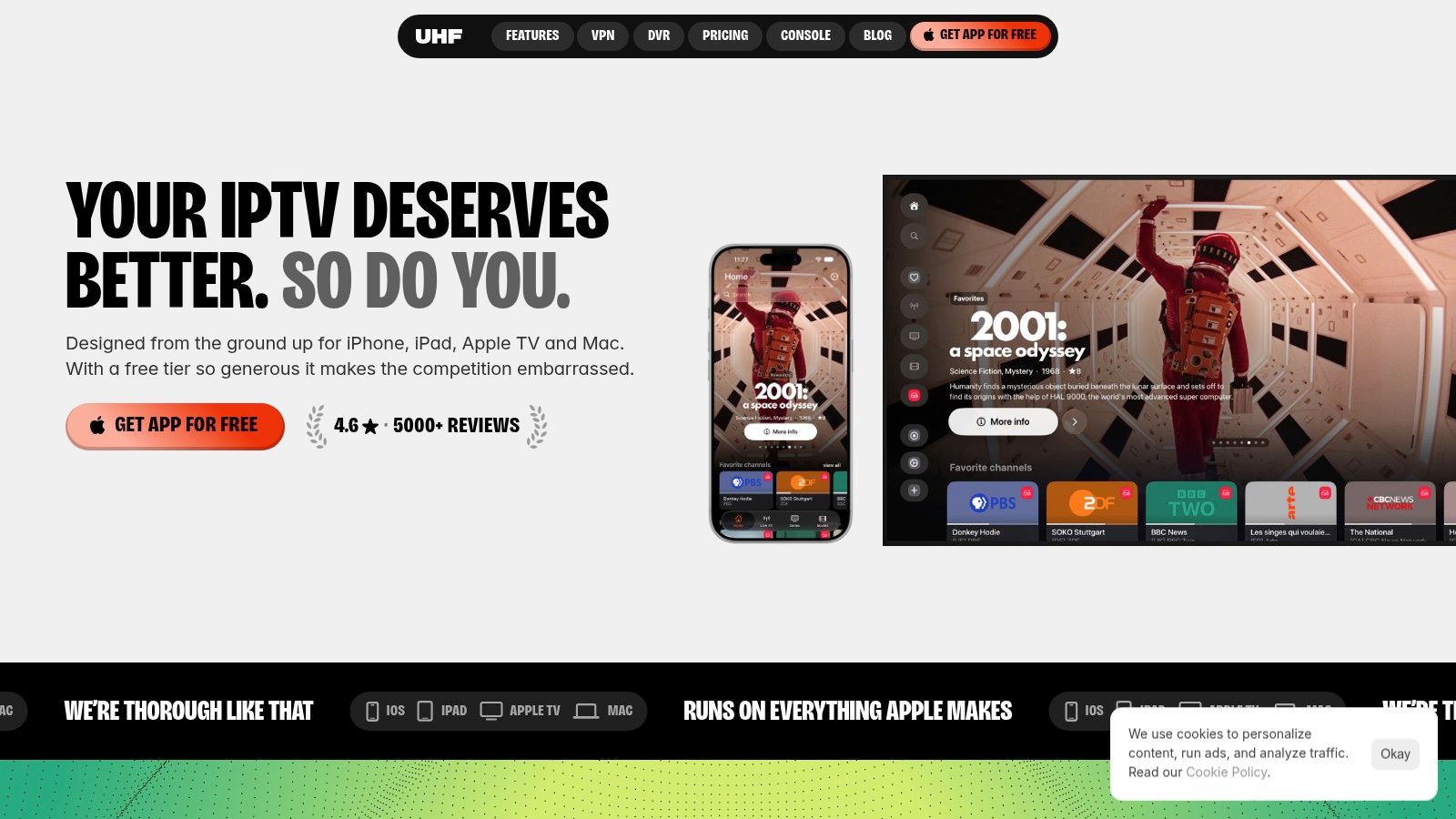
UHF takes the opposite approach to monetisation. The free tier on Apple TV, iPhone and iPad includes core playback and content tools, which is enough for a household to live with the app for a week before deciding anything. It reads M3U8 and Xtream sources and also pulls in Plex, Jellyfin and Emby libraries.
The interface is designed around the Siri Remote, and it shows. Favourites, search and playlist organisation are all reachable in a couple of clicks rather than buried in submenus, which is the difference between a family using the app and a family asking you to fix the app.
What needs a computer
Recording requires a separate UHF Server running on a machine on your network. Sync and expanded guide functions sit behind Pro. That's a deliberate architecture, not an oversight, and it keeps the Apple TV app light, but it's the reason a single-TV household with no always-on computer should look elsewhere.
The ceiling is the ecosystem. There's no Android, Fire TV or Windows version, so UHF is a fit for an Apple-only home and a dead end for a mixed one.
Test a free tier for a full week of real viewing before buying Pro. Two evenings of browsing tells you more than any feature list.
Official site: UHF.
5. Televizo
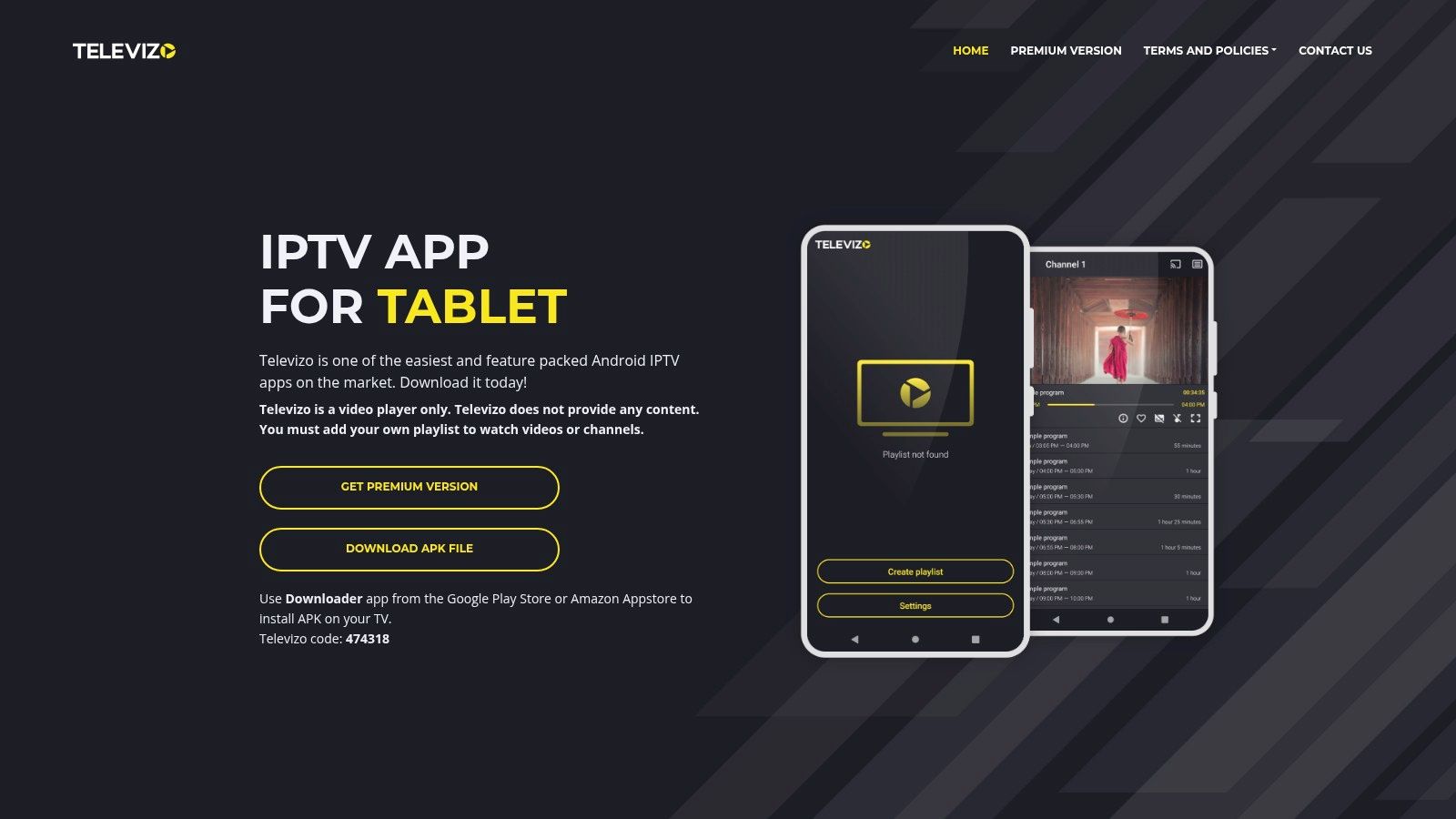
A useful test for an IPTV player is how quickly someone can reach a channel without help. Televizo runs on Android phones, tablets and Android TV devices, and supports multiple playlists, an electronic program guide (EPG), catch-up, search, sorting and favourites. It also supports Chromecast, so a phone can control viewing on a compatible screen. Playlist format support can depend on the source and app version, so check that your playlist's login method works before settling on Televizo.
The CRTC reported that 75% of Canadians had access to at least one video-streaming service in its 2025 tracker, while satisfaction with online video was roughly 60% (CRTC tracker).
The trade-off nobody mentions
Televizo's free version includes ads. It has a large user base on Google Play, but popularity alone does not tell you whether a particular playlist will work well. Televizo is a player, not a content provider: it displays a playlist you supply, and cannot fix a provider's stream.
- Good: Audio-track and subtitle selection, Chromecast support, and sorting tools for long channel lists.
- Weak: No Apple TV option, and ads interrupt browsing in the free version.
For a budget Android box in a second room, Televizo is a practical option. For the main television, consider whether its guide and interface suit everyone who will use it. Official site: Televizo.
6. OTT Navigator
OTT Navigator suits viewers who want control over how a channel list is arranged. It supports M3U and M3U8 playlists, Xtream Codes, and portal-style connections. You can combine or prioritise providers in a single lineup, which is useful when different sources have different channel orders.
The trade-off is setup complexity. Its many settings give experienced users room to adjust the layout, but can slow down someone who just wants to open a guide and pick a channel. The app plays a playlist you supply; it does not provide channels.
The smart-TV gap
OTT Navigator has no native app for LG webOS or Samsung Tizen, according to the developer's FAQ. If your main screen is one of those TVs, you will need a compatible external device, such as an Android TV box. That extra hardware and setup can make first playback less straightforward than using an app built for your television.
Buyer check: Confirm your exact device and installation route before paying for premium features. Android TV support does not guarantee compatibility with every box.
Official site: OTT Navigator.
7. Smart IPTV (SIPTV)
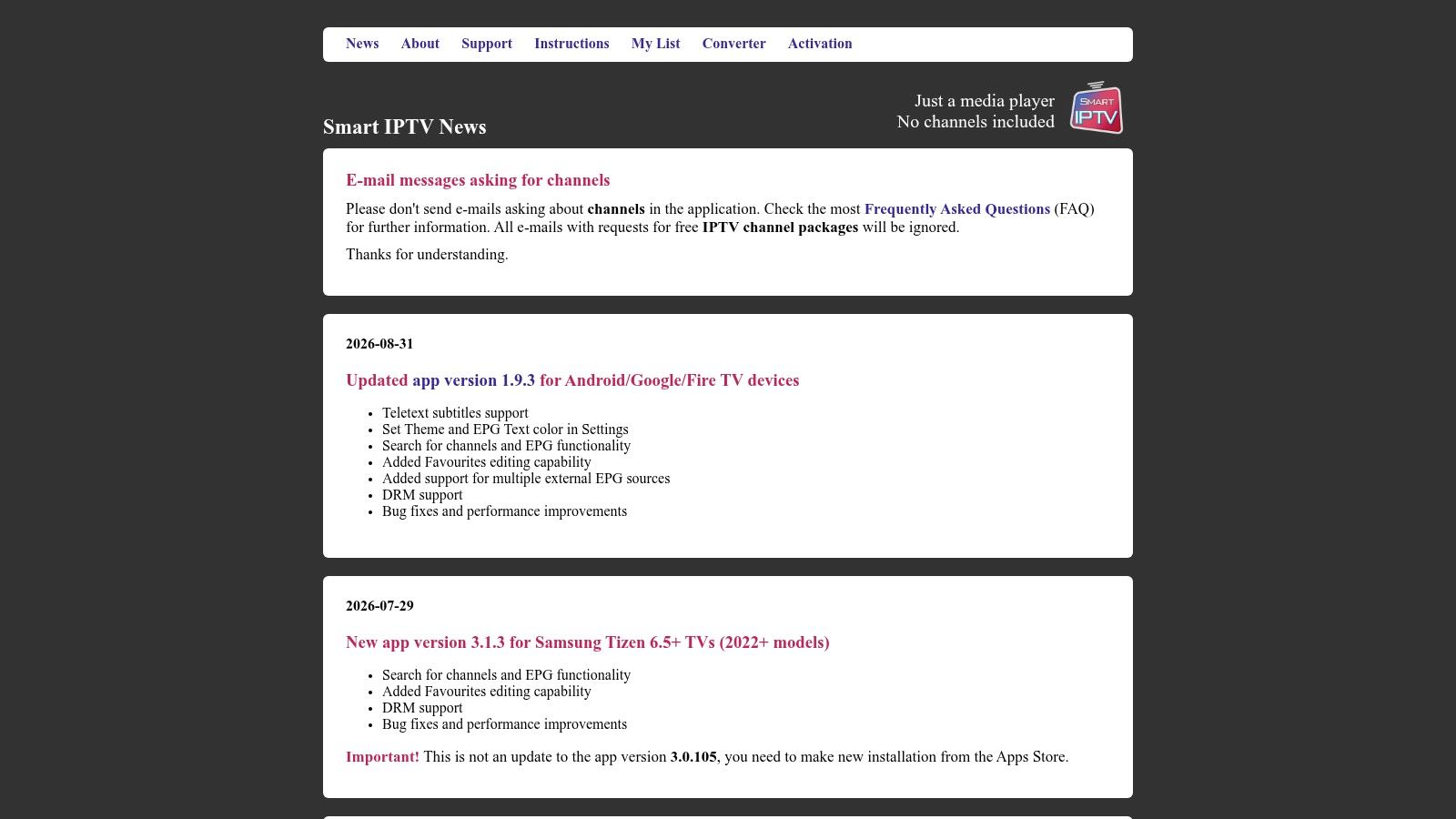
Smart IPTV exists for one reason: it works on certain Samsung and LG televisions without an extra streaming stick. If your TV is the device, and you'd rather not add another remote to the coffee table, a compatible installation is the cheapest path to a working guide.
The catch is format. SIPTV is built around user-supplied M3U playlists registered through the developer's website, which is fine if your provider gives you an M3U link and awkward if you've only been handed Xtream username and password details. Activation is separate from any content subscription and can be tied to the specific device.
The household this suits has changed shape in the last two years. The CRTC's 2024 broadcasting report, citing Media Technology Monitor data, puts streaming-only households at 29% in 2024, up from 23% in 2023, while 62% of Canadians still subscribed to traditional television (CRTC report). A TV app serves the overlap: people who kept the television but dropped the package.
- Support depends on the model: check your exact TV and operating system before paying.
- One-time activation rather than a recurring app fee, which some buyers prefer.
- A trial period exists on supported installations.
Official site: Smart IPTV.
8. Smarters Pro
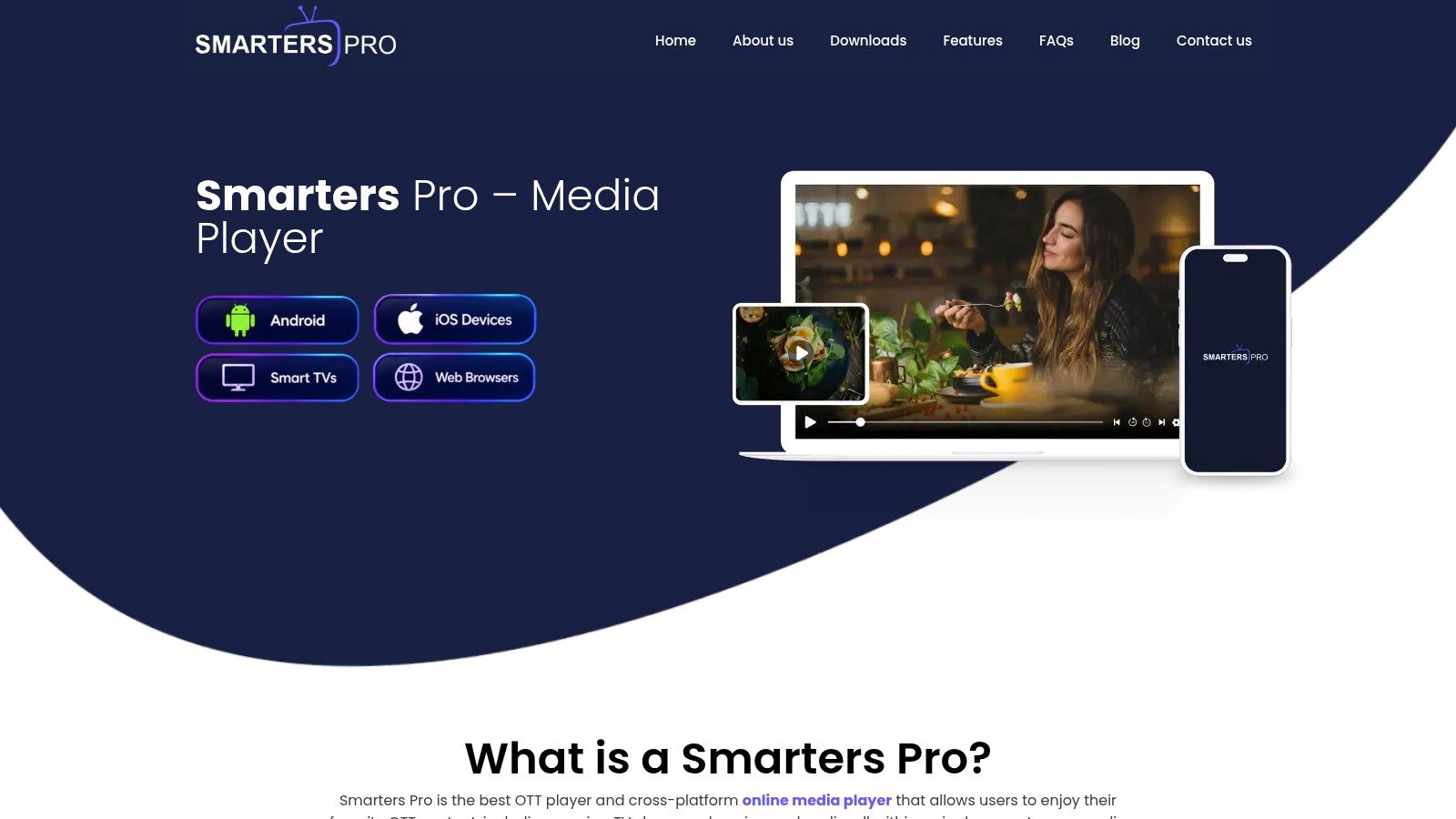
A Canadian household might use a television in the living room and a tablet elsewhere. Smarters Pro can suit that mix when the app is available for the household's devices. It is a player, not a content service: you provide a compatible playlist, and the app handles playback.
Check four things before choosing it: device support, playlist format, guide performance and setup. Smarters Pro is available across multiple platforms, but the exact options can vary by device and region. Confirm that your playlist's M3U, Xtream Codes or Stalker Portal details are supported by the specific version you plan to use. With a large channel list, test how quickly the guide loads and how easily you can find a channel.
For a first-time user, the main hurdle is getting the correct app and entering the playlist details accurately. Our guide to installing IPTV Smarters Pro on Firestick walks through the installation process.
Install the app from the listing for your device, then check that the publisher and app name match before entering your login details.
Features and pricing can differ between versions, so compare the exact listing available in your region. Official site: Smarters Pro.
9. VLC media player
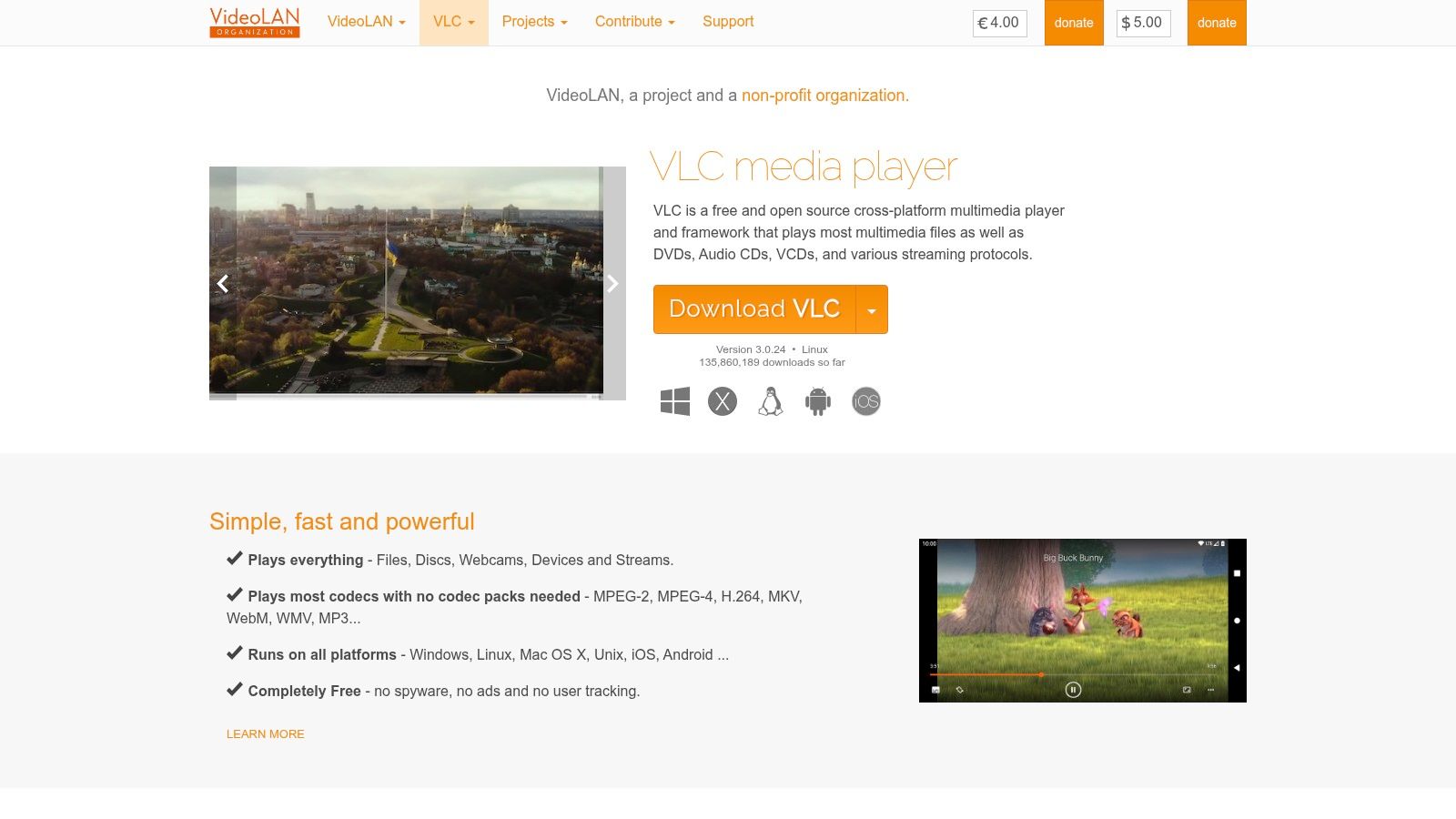
A channel won't load in your usual IPTV app? VLC can help isolate the problem. It plays compatible M3U playlists and supported network streams on Windows, macOS, Linux, Android and iOS, and it is free to use.
Try the same stream in VLC and your regular player on the same network. If it works in VLC but not the other app, check that app's settings or device compatibility. If it fails in both, the issue may be the playlist or your connection.
Why it can't be your main app
VLC is better suited to checking a stream than browsing a large channel lineup. It lacks an IPTV channel guide, favourites sync and a DVR interface, so finding and switching between channels can be cumbersome. It also doesn't supply channels; you need a compatible playlist.
Peak-hour broadband congestion can cause evening stutter even when a connection seems fine earlier in the day. Test your stream at the time you usually watch.
Test at the time it breaks. A speed check at 10 am tells you little about how a stream will perform during an 8 pm hockey game.
Official site: VLC media player.
10. IBO Player Pro
A player's setup experience matters most when someone else in the household has to use it. IBO Player Pro is presented as a straightforward option, with playlist playback, favourites and parental controls. Its suitability depends on the app version and device, so check that it supports your playlist format and offers the guide features you need before paying.
Verify before you pay
Several apps and sites use similar IBO branding, and activation terms can differ. Confirm the developer for your specific device version and read the billing terms carefully. Paying to activate a player does not include a channel subscription.
Unlicensed IPTV services can be blocked by regulators, which may end access even after a customer has paid. Before entering payment details, check the legal entity, billing name, terms, privacy policy and complaint route.
- Activation is not a subscription: paying for the app does not provide channels.
- Confirm the developer for the version intended for your device.
- Check renewal terms before choosing a lifetime activation.
For a separate look at provider-side checks, see this Canadian IPTV buyer guide. Official site: IBO Player Pro.
How the 10 IPTV player apps compare on device support, playlist formats, guide features and best use
An IPTV player displays a playlist; it does not supply channels. For a Canadian household, compare each app on four practical points: compatible devices, playlist formats, guide tools for a large channel list, and how easily a new user can start playback. Features such as catch-up and recording depend on the app, device, and playlist.
| Item | Device Support | Playlist Formats | EPG and Guide Features | Best For |
|---|---|---|---|---|
| TiviMate | Android TV and compatible Android TV boxes | M3U, Xtream Codes, Stalker Portal | EPG, favourites, search, multiple playlists; catch-up and recording when supported | Android TV users seeking a customizable, remote-friendly guide |
| Sparkle TV | Android TV, Google TV, Fire TV | M3U, M3U8, Xtream Codes | EPG, channel logos, programme information, search; DVR and timeshift with Plus | TV-device users wanting playlist playback and optional recording |
| IPTVX | Apple TV, iPhone, iPad | Xtream API, M3U, M3U8, Plex, SMB | EPG, catch-up, multiple playlists, parental controls | Apple users combining IPTV playlists with personal media |
| UHF | Apple TV, iPhone, iPad | M3U8, Xtream, Plex, Jellyfin, Emby | EPG, catch-up, favourites, search; expanded guide features with Pro | Apple users who also want access to personal media libraries |
| Televizo | Android phones, tablets, and TV devices | M3U and Xtream Codes | EPG, catch-up, search, sorting, favourites | Android users seeking playlist playback and Chromecast features |
| OTT Navigator | Android-based TV devices | M3U, M3U8, Xtream Codes, portal options | EPG, search, favourites, category organization | Experienced Android users managing multiple providers |
| Smart IPTV (SIPTV) | Certain Samsung and LG TVs, some Android/Google TV and Fire TV devices | M3U | Playlist and channel-list playback | Users with a compatible TV and an M3U playlist |
| Smarters Pro | Android, iOS, Apple TV, computers, web, and some Smart TVs | M3U, JSON | EPG and programme listings | Households using a range of device types |
| VLC media player | Windows, macOS, Linux, Android, iOS | M3U and supported network streams | No dedicated IPTV guide features | Testing playlists or streams and playing local media |
| IBO Player Pro | Device support depends on the app version and installation route | M3U | EPG and basic organization tools | Users seeking straightforward playback with basic household controls |
A large playlist can make guide quality more important than the number of supported formats. Search, favourites, and category organization help narrow the list; catch-up, recording, and other advanced options work only when the app, device, and playlist support them. For a first-time user, a familiar device and a straightforward playlist login can matter more than extra configuration choices.
Choosing a Player You Will Still Use Next Month
Start with the device already in the living room. If it's an Android TV box or a Firestick, TiviMate, Sparkle TV, Televizo and OTT Navigator are all live options, and the choice comes down to whether you want a clean guide or deep configuration. If it's an Apple TV, your shortlist is IPTVX, UHF and Smarters Pro, and VLC as a fallback. If the television itself is the device, Smart IPTV is the only one here built for that job.
Then check the playlist format your subscription provides. M3U links and Xtream Codes logins aren't interchangeable in every app, and a single-format player can leave you stuck on a screen asking for a portal URL you don't have. Ask for both formats if the provider offers them, so a future app change costs you nothing.
Test the guide on your own channel list before paying for anything. Load the playlist into a free tier, scroll to a channel you'd watch, check whether the programme information lines up with the time zone in your province, and time how long the app takes to reach a picture after launch. That ten-minute test tells you more than any feature comparison.
Treat every player as a separate purchase from the channels it plays. The app renders streams; it doesn't license them, doesn't fix a dead source, and can't guarantee a resolution your connection or provider can't deliver. When a channel fails, test the same stream in VLC before blaming the app.
When you're ready to set up, WATCHING FORCES lists its setup steps and supported devices, along with a free 24-hour trial where eligible, at watchingforces.com. Setup runs in five steps: pick a package, receive login credentials, install a player, enter the activation details, then start streaming. If you'd rather ask about your specific television or box first, the support team answers questions on WhatsApp.
A final note on patience. The app you install in a hurry is the app you replace in three weeks. Pick the player that matches your device and your playlist format, trim the categories you'll never watch, and leave VLC installed for the nights when something odd happens on the provider's side.
WATCHING FORCES delivers live television, sports, movies and international programming over the internet to smart TVs, Android boxes, Firestick, Apple TV and mobile devices, which means the player you choose here is the front end to that subscription. Packages come with multiple connections for households watching different screens at once, and a free 24-hour trial lets you test the guide and channel switching on your own equipment before committing. Visit WATCHING FORCES to compare packages and start with a device you already own.

No Responses