
The box arrives, the player goes on, and everything looks fine until the first live game of the weekend. Ten minutes in, the picture breaks into blocks, the audio drops, and someone in the room decides the subscription is bad. It might be. More often the cause sits closer to home, in the Wi-Fi at that corner of the house, a box that can't decode the stream, or a login typed with one wrong character.
Setting up IPTV on Android Box hardware goes smoothly once you treat three things as separate problems: the box, the player app and the stream. Measure the connection first. Install a player that matches the format you were issued. Judge the provider's rights, privacy and accessibility before any credential is typed. Do that in order and troubleshooting becomes a decision instead of a guess.
Table of Contents
- Check Your Android Box and Connection First
- How to Install a Compatible IPTV Player on Your Box
- Check Rights, Privacy and Accessibility Before You Subscribe
- Enter Your Authorized Subscription Credentials
- Fix Buffering, Login and Playback Problems
- Confirm Your Setup and Decide on a Subscription
Check Your Android Box and Connection First
A family carries a new box home on Friday, plugs it into the living room television, installs a player and starts the first live game. The picture holds for ten minutes, then breaks up. Nothing has been measured yet, so anything said next is a guess.
An Android box is viewing hardware. IPTV is the delivery method, television sent down your internet connection, and the box only decodes it. Test the line before the app, because a box that plays a local file flawlessly can still fail on a live channel for reasons that have nothing to do with the player.
What each stream type asks of the line
The CRTC's broadband guidance for Canadian households sets minimums of about 3 to 5 Mbps for standard definition, 5 to 8 Mbps for HD and 25 Mbps for 4K, counted per stream in use. Data per hour follows from the bitrate, so the table converts each range into an hourly figure.
| Stream type | Minimum download speed | Approximate data per hour |
|---|---|---|
| Standard definition | 3-5 Mbps | About 2.2 GB at the 5 Mbps upper end |
| HD | 5-8 Mbps | About 3.6 GB at the 8 Mbps upper end |
| 4K | 25 Mbps | Up to 5 GB |
| Two HD streams at once | 10-16 Mbps | About 7.2 GB combined |
Two HD programmes at once therefore need roughly 10 to 16 Mbps of usable capacity before gaming, video calls or a background backup takes its share. A 150 Mbps plan still stutters if the box sits behind a cabinet on a congested 2.4 GHz channel.
Data is the other half of the decision. 4K video can use as much as 5 GB per hour, per CRTC reporting on Canadian data consumption, so two screens running four hours each can approach 40 GB in one evening. A capped plan has to be sized against that number, not against the price of the box.
Four box checks before the first install
- Android version: the player needs an operating system the developer still supports. Older builds fail at login or refuse to install at all.
- Free storage: players cache guide data and artwork, and a full device produces crashes that look like network faults. Keep a couple of gigabytes clear.
- Remote navigation: a cheap air-mouse works, but the menu has to be reachable with the directional pad, or every login turns into a chore.
- Decoder headroom: the box must handle the resolution you watch. A unit built for HD doesn't become a 4K box through settings.
The readiness test that settles it
Run the test at the television rather than beside the router, note whether the box is on Ethernet or Wi-Fi, and repeat the run between 8 and 9 pm when the neighbourhood is streaming. If the provider's portal also refuses to load, run a ping from your browser to separate a dead service from a dead connection.
Go or no-go: the connection passes when sustained throughput at the box stays above the stream's bitrate with headroom left for protocol overhead and other household traffic. Below that line, adaptive playback drops quality or rebuffers, and no player setting fixes it.
If the test fails, fix the connection before blaming the player. Our guide to IPTV internet speed requirements sets out the same thresholds device by device.
How to Install a Compatible IPTV Player on Your Box
A box on its own does nothing useful. It runs a player application, and that app is what loads your service details, which makes the player the link between hardware and subscription. The service also works on Android boxes, smartphones, tablets, and Windows laptops and Mac computers through IPTV player applications, and the install routine is nearly identical on each.
Before you download anything, confirm which format your provider issues. Most services hand out an M3U playlist link or an Xtream Codes login, and some use a device portal with a MAC address. The player you install has to accept the format you were given, so ask first and install second. A player that supports Xtream logins but not portal addresses wastes an evening.
The install routine, in order
- Check the box is supported. Confirm the Android version and free storage. The usual slip is picking a player whose minimum OS is newer than the box, then assuming the app is broken when it won't open.
- Download from the official app store or the developer's own site. Random mirror links are how altered builds reach a living room. If the developer publishes only on their website, use that page, not a reposting.
- Inspect the listing before opening it. Check the publisher name, the install date and the permissions requested. A media player that asks for contacts, SMS or location is asking for something it has no use for.
- Install and grant only what it needs. Storage access for the guide cache and network access for streaming. Deny anything else, and if the app refuses to run without unrelated permissions, remove it and choose another player.
- Switch off unknown sources after a sideload. If you installed an APK by hand, go back into the box settings and turn unknown sources off once the app is on. Leaving it on permanently widens the attack surface for every future install.
- Restart the box and reopen the player. A clean launch with no unexpected prompts confirms the install. If a login screen appears asking for an account you never created, stop and uninstall.
Avoid pre-loaded or "fully loaded" boxes. They ship with unknown apps and credentials that aren't yours, and the account inside them can disappear without warning. Reusing a password you use elsewhere on an unfamiliar player is the second mistake, because a leaked credential can expose more than a television subscription.
If you haven't settled on a player yet, our IPTV player comparison weighs TiviMate, IBO, VIVO and BOB on format support and remote usability.
When the routine is done, the player's home screen should load with no errors and its settings should show an option to add a playlist or an account. That empty slot is where the next step goes. A 3 Months IPTV Subscription Canada plan runs through exactly this kind of app on an Android box, with 4K and 8K viewing options, 46,500 live channels and 176,500 movies and series in the catalogue.
Here is the same install walked through on screen, if you prefer to watch once before starting.
Check Rights, Privacy and Accessibility Before You Subscribe
Nothing on the screen tells you whether a channel is licensed. The hardware displays whatever a provider sends, so every rights, privacy and accessibility question belongs to the service, not the device. A Canadian guide to IPTV safety and provider due diligence makes the distinction plainly, and it's the one worth holding onto: IPTV as a technology is just television over internet networks, while the risk sits with a particular provider, its payment process, its privacy policy and its content authorization.
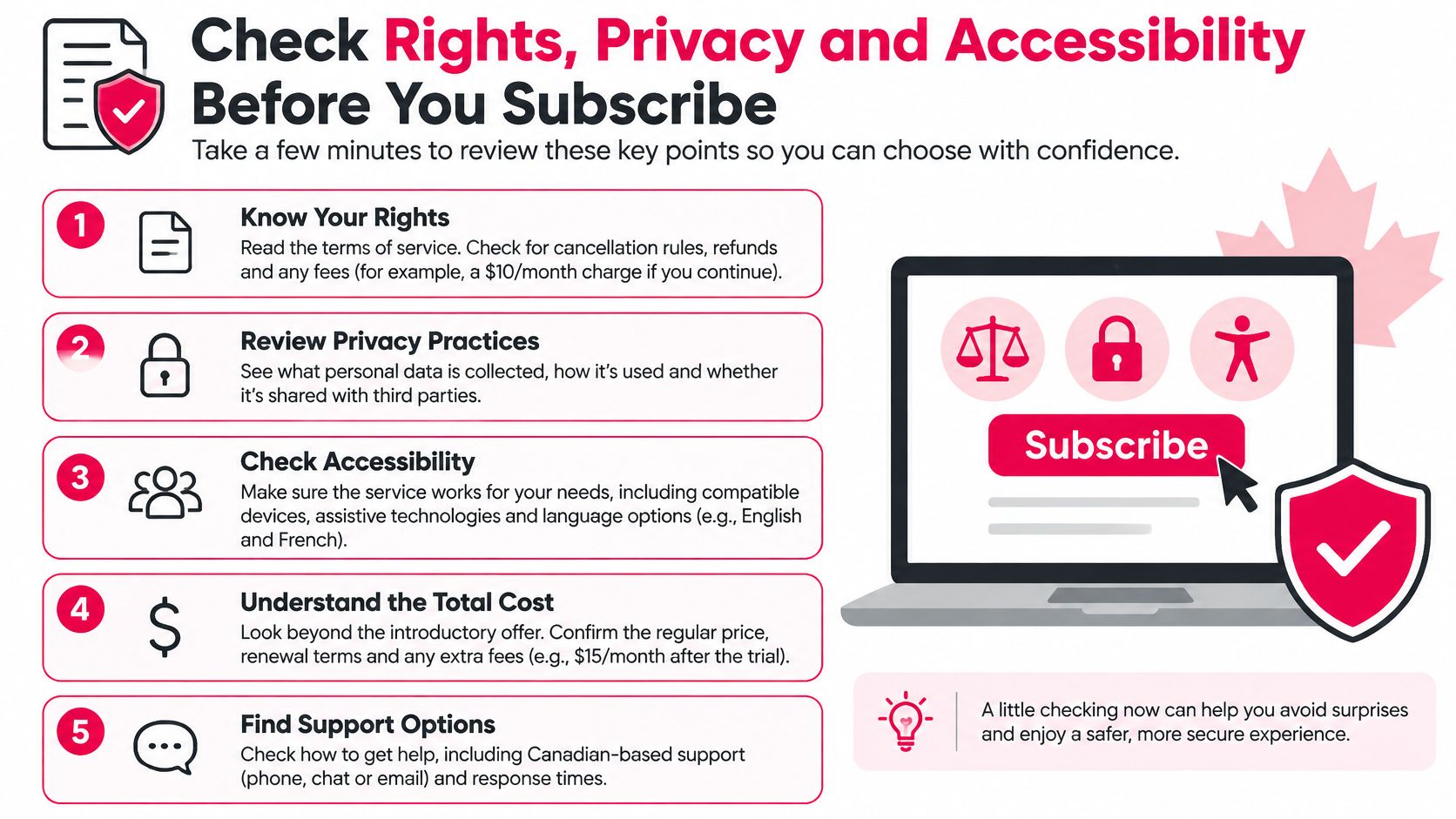
Work through these before any username goes into a field.
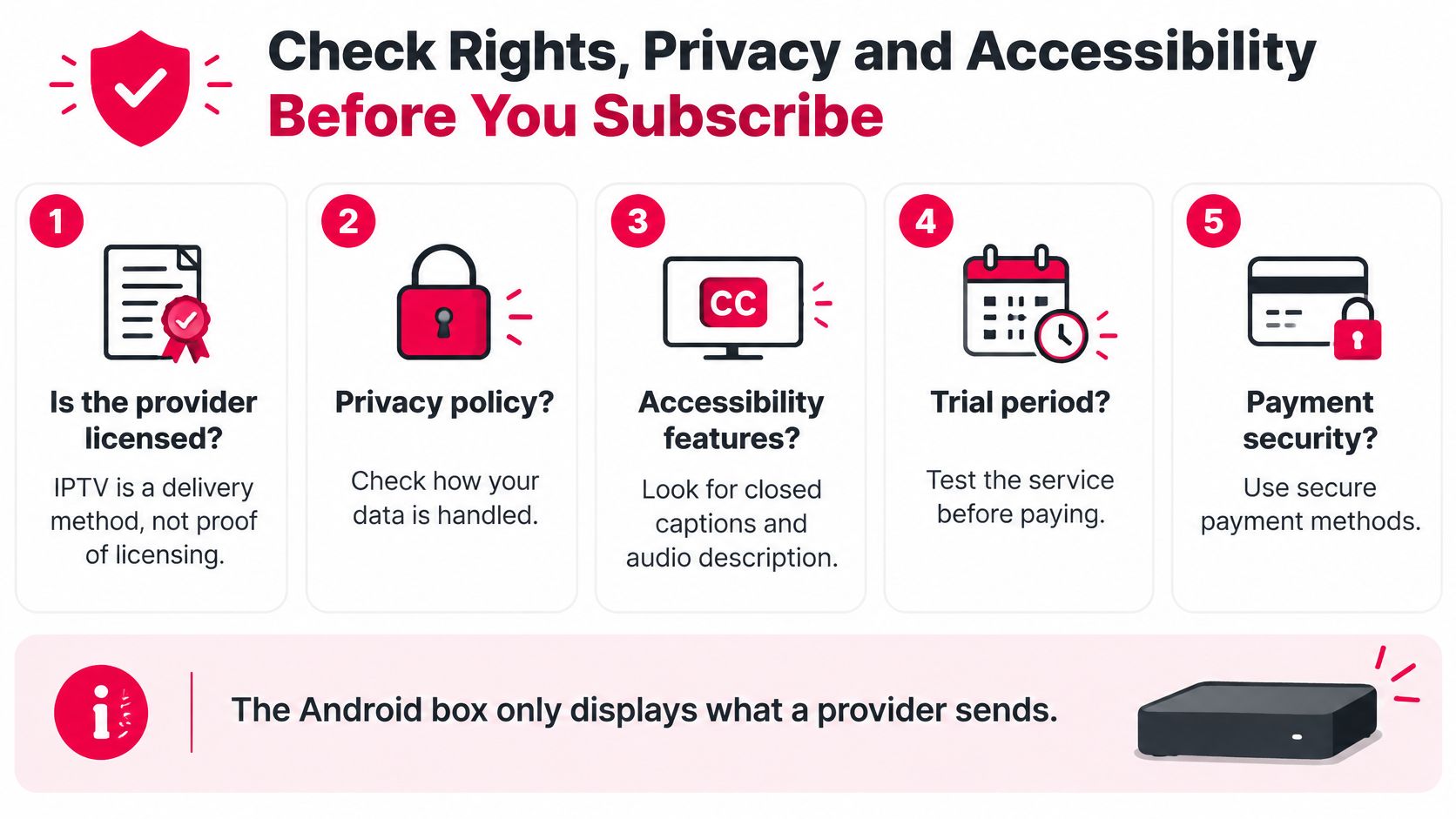
Rights, named plainly. The provider should state which distribution rights it holds for Canadian viewers and where its channels are licensed. A site that never mentions rights has answered the question.
A privacy policy you've read. Give only the details the service asks for. If a television subscription wants identity documents or unnecessary personal data, that's a reason to walk away, not a formality to click past.
A unique password. One password for this account, generated and stored rather than reused. Most account takeovers on streaming services start with a password that already leaked somewhere else.
Accessibility tested on a trial. Check that closed captions render legibly, that audio description is available where you need it, that the programme guide text is readable at sofa distance, and that the remote reaches every menu without a scavenger hunt. Multilingual households should confirm the language options match what the family watches. The CRTC has consulted on closed captioning, described video and audio description for broadcasters and online streaming services, so these are live regulatory concerns in Canada rather than optional extras.
The connection limit. Find out how many simultaneous streams the plan allows before you add a second box to the household.
Write each item down as pass or fail. A provider that fails two of the five fails whether the picture looks good on the first night.
One more boundary worth stating. A paid IPTV plan doesn't add Netflix, Disney+ or any other subscription service. You're paying for the provider's own lineup. For the legal side in plain language, read our explainer on whether IPTV is legal in Canada.
Enter Your Authorized Subscription Credentials
Credentials arrive in one of three shapes, and each one fills the player with different fields. Match what the provider sent to what the app asks for before you start typing.
| Credential type | What you enter | Where to find it | Common mistake |
|---|---|---|---|
| Xtream Codes login | Server URL, username and password | Provider's activation email or account page | Typing the server address with a wrong port or extra characters |
| M3U playlist link | Full playlist URL | Provider's playlist entry | Pasting a link with spaces or an expired older link |
| Device portal | Portal address and device ID | Provider's setup instructions | Retyping the device ID with the wrong separators |
The sequence itself is short. You choose a channel package, receive login credentials, install an IPTV player application, enter the activation information, and start streaming. Activation is typically completed shortly after subscription, so a freshly paid account should be live by the time the player is installed.
- Open the player and choose the add option. Look for "add playlist", "add user" or "add account" in the settings area. If the app demands an account of its own first, that's a different product than the one you want.
- Select the credential type you were issued. Picking Xtream when you were given an M3U link produces fields you can't fill.
- Enter each field by paste, then check for whitespace. Copy from the activation email, paste into a plain text field first to strip hidden formatting, then paste into the player. Leading and trailing spaces are the single most common cause of a failed login.
- Save and let the channel list load. A large lineup can take a few minutes on the first pull. If it fails outright, suspect a typo or an unsupported format before a faulty box.
- Play one live channel and one on-demand title. They exercise different parts of the service, and a working live channel doesn't prove the on-demand library is reachable.
- Open the programme guide and spot-check a few listings. Guide data can lag the broadcaster's own schedule, so compare against the channel's published listings rather than assuming the grid is authoritative.
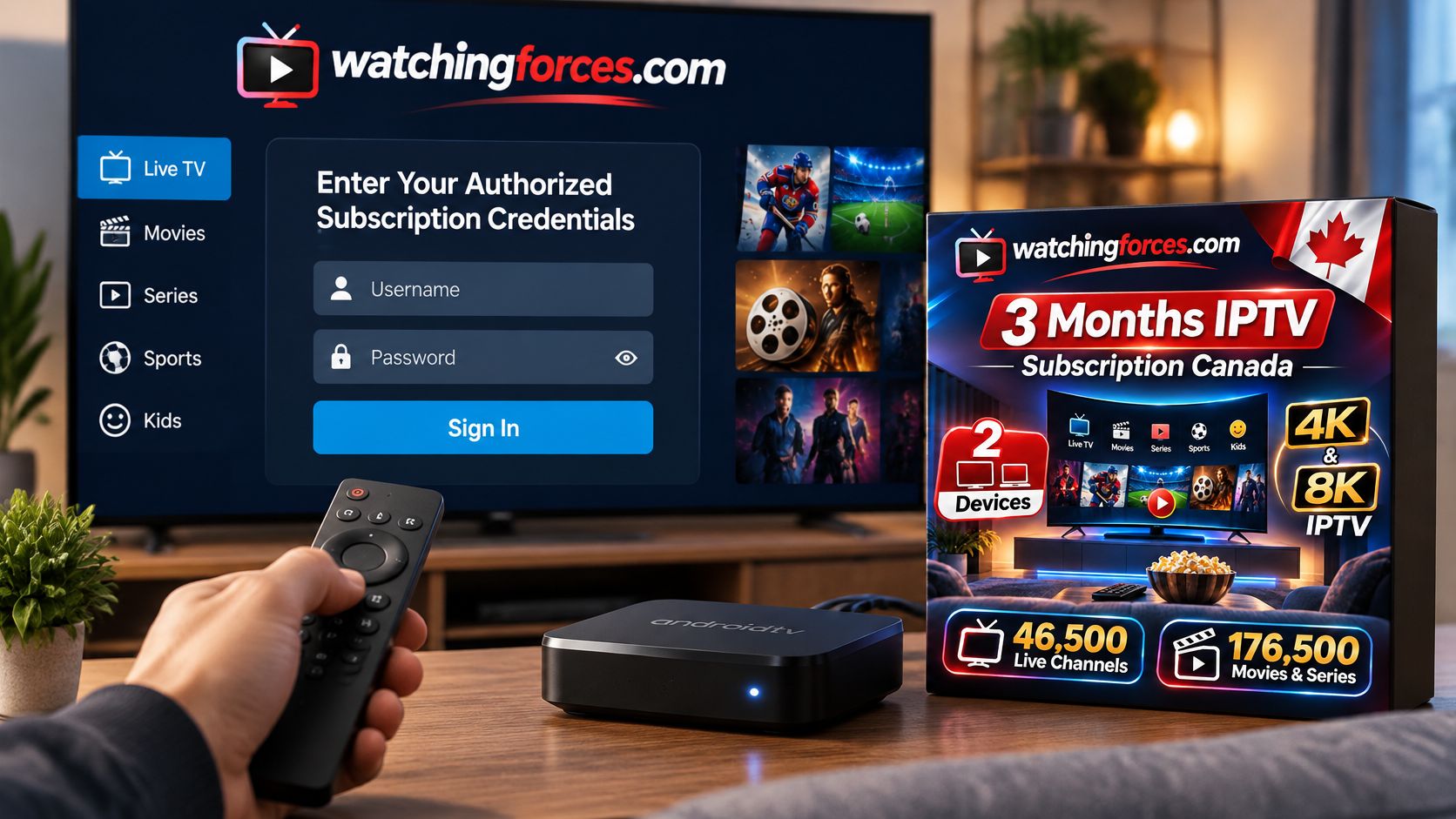
Package length doesn't change any of the fields above. The listing you activate from looks much like this one, and the login details that arrive with it slot into the same three or four boxes.
Keep it in the household. Credentials belong to the account, not to a forum thread. Don't post them in screenshots or chat groups, and check the plan's simultaneous-connection limit before a second box is added, because sharing beyond the limit is how subscriptions get suspended.
Fix Buffering, Login and Playback Problems
Once channels load, match the symptom to one cause before replacing anything. Change one variable at a time and write down the hour it happened, because evening behaviour and morning behaviour are different diagnoses.
| Symptom | Likely cause | First check |
|---|---|---|
| Login fails with correct details | Typo or extra space in the server or username field | Re-copy each field and confirm the account is active |
| One channel buffers, others play | Stream-side congestion or unsupported format | Test the same channel in a second player |
| Every service buffers in the evening | Wi-Fi interference or peak congestion | Compare Ethernet and Wi-Fi at the same time of day |
| Stutter after a router restart | Router or box queueing | Restart the box and router, then retest one variable at a time |
| 4K drops to poor quality | Box cannot decode the stream or bandwidth is too low | Switch to HD in settings and compare results |
The pattern matters more than any single test. When one channel fails and everything else plays, the household connection is fine and the fault sits at the stream or in an unsupported format. When every app degrades after 8 pm and recovers by midnight, local Wi-Fi or peak congestion is the better explanation.
Measure at the box. A speed result taken beside the router describes the router's ability, not what the television actually receives.
The CRTC's broadband measurement research notes that latency around 35 to 42 milliseconds or lower is generally desirable for video streaming, and that higher download speeds improve loading and high-definition playback. The same work found average user download speeds exceeding advertised rates across the ISPs studied, which is reassuring but doesn't explain a single broken channel. A fast line and a healthy stream are two separate conditions.
A few fixes earn their place because they isolate rather than gamble. Swap the box to Ethernet for one evening. Move the box out from behind the television. Force the 5 GHz band instead of letting the router decide. Restart the router and the box together, then test one known HD channel before touching any other setting.
Contact support only after that home test is clean, and bring the details that shorten the conversation: the symptom, the one change you made, the box model, the time of day it happens and whether Ethernet behaved differently. No setup removes every interruption, but most of them trace back to a cause you can name.
Confirm Your Setup and Decide on a Subscription
Decide after the evidence is in, not before. Four things should be true: the readiness test passed at the television, the player opened without errors, one live channel and one on-demand title both played, and your rights, privacy and accessibility notes are written down with more passes than fails.
A short trial is better evidence than a long plan bought on faith. A 24-hour trial applies only where a household is eligible and the offer is currently listed, so confirm the live terms before counting on it.
Cost is the easiest part to check and the easiest to misread. Current package prices are shown in Canadian dollars on the WATCHING FORCES site, and the household picks a channel package during setup, so match the package to what the connection table above says about your line: two HD streams need roughly 10 to 16 Mbps of usable capacity, and 4K can reach 5 GB an hour. A plan built for four simultaneous streams is wasted money on a line that only supports one.
For setup help, message the support team at WATCHING FORCES on WhatsApp with your box model and the readiness test result. That single message saves most of the back and forth.
A stable picture comes from a clean connection, a supported player and exact credentials. It never comes from a promise of zero buffering, and any provider making that promise is telling you something about how it sells rather than how it streams.
WATCHING FORCES delivers live television, sports, movies and international programming to Canadian households over the internet, with thousands of live channel options and packages sized from a single screen up to a full household, all running through the player you have just installed. If your readiness test came back clean and the player is sitting there waiting for credentials, start with a short package and grow it once the household settles into a routine. Compare the current packages in Canadian dollars at WATCHING FORCES.

No Responses