
An M3U file is a plain-text playlist of channel names and stream addresses, and it proves formatting only, not authorization or stream quality. That's the answer most advice about an IPTV Pro APK channel list M3U gets backwards. Popular guides tell you to chase the longest list, pick the player that imports it fastest, and treat successful playback as proof that everything's fine. None of those steps tells you who holds the rights, whether an address will survive the evening peak, or whether your TV can decode the stream. Work in the opposite order. Verify the source first, inspect the file second, and import last.
Table of Contents
- What an M3U Channel List Does and Does Not
- APK, M3U and M3U8 Formats Compared
- Verifying Authorized Canadian Sources
- How to Check a Playlist Before You Import It
- Bandwidth Needed for Each Stream Quality
- Device and Player Compatibility by Platform
- Organizing Channels by Category and Language
- Troubleshooting Playback Problems
- Confirm the Source Before You Subscribe or Import
What an M3U Channel List Does and Does Not
An M3U file is a plain-text playlist that lists channel names, group labels and stream addresses, and a compatible player reads it line by line to build a channel menu. An APK is a different thing entirely. It's an Android application package that installs an app. The search phrase bundles three separate items together, the app, the playlist file, and the channel entries recorded inside that file, and treating them as one product causes most of the confusion.
Three Jobs, Three Different Checks
- The APK: Installs software on an Android device. It doesn't supply channels, hold broadcasting rights, or guarantee that any stream will play.
- The M3U playlist: Tells the player what to request and how to label it. It can be perfectly formatted and still point to dead, duplicated or unauthorized addresses.
- The stream behind each entry: Determines picture quality, stability, language and Canadian availability. You can't judge any of that from the file extension or the menu it generates.
Say you're handed a list with 2,000 entries. Inside that file you can't see which links expired last month, which channels appear four times under slightly different names, or which feeds were captured for viewers in another country. The player shows you a menu. It doesn't audit the menu.
The demand behind these searches is real, and it's mainstream rather than marginal. In CRTC reporting on Canadian broadcasting in 2024, the share of Canadian households consuming television exclusively through streaming services rose from 23% in 2023 to 29% in 2024, while 76% of Canadians subscribed to a subscription video-on-demand service compared with 62% who subscribed to traditional television. That shift explains the appetite for consolidated online channel lists. It doesn't validate any specific APK, playlist or provider you find through a search.
A playlist proves a player can read text. It says nothing about who owns the picture.
After working through the checks that follow, you'll be able to inspect a file's format, test its addresses before committing to it, confirm rights with a named distributor, and match a player to the devices your household uses. That's a slower route than tapping import. It's also the only one that tells you what you're really getting.
APK, M3U and M3U8 Formats Compared
Format confusion costs people evenings. They download an installer when they needed a playlist, or blame a player for rejecting a stream type it was never built to handle. The table below separates the four things that get lumped together.
Playlist and App Formats at a Glance
| Format | What It Is | Typical Extension | What It Proves |
|---|---|---|---|
| APK | Android application package that installs an app | .apk | Only that an app is installed, not channel rights |
| M3U playlist | Plain-text list of channel names and stream addresses | .m3u | Formatting only, not authorization or quality |
| M3U8 playlist | HLS playlist with URIs and descriptive tags | .m3u8 | Adaptive live manifest, URIs must still be reachable |
| Authorized broadcaster app | Official app from a licensed distributor | Installed through an official app store | Rights held by the named distributor |
An M3U file works as a UTF-8 text manifest. The player imports it, reads the channel labels and addresses, and requests a stream when you select an entry. Nothing in that process checks licensing. An M3U8 file is an HLS playlist, and its entries are URIs accompanied by descriptive tags that describe segments, renditions and timing. That's the format behind adaptive live streaming, where the player can step between quality levels as your connection changes.
The practical consequence matters at the sofa, not just on paper. A player may happily accept an M3U file and then fail on a particular M3U8 entry because the codec isn't supported, the URI has gone unreachable, or the address points to a media playlist when the player expected a master playlist. The import succeeding tells you the wrapper parsed. It tells you nothing about each individual stream inside.
An authorized broadcaster app sits apart from all three file types because the rights sit with the distributor behind it, not with any file. That's the structural difference. Files carry instructions. Distributors carry licences.
So the file extension never proves legitimacy, and renaming a file changes nothing. Before you use any file from any source, ask one question. Who holds the rights to the channels inside it, and can you name that party? If you can't name them, you've found a formatting success and an authorization gap, and the second part is the one that determines whether you should proceed.
Verifying Authorized Canadian Sources
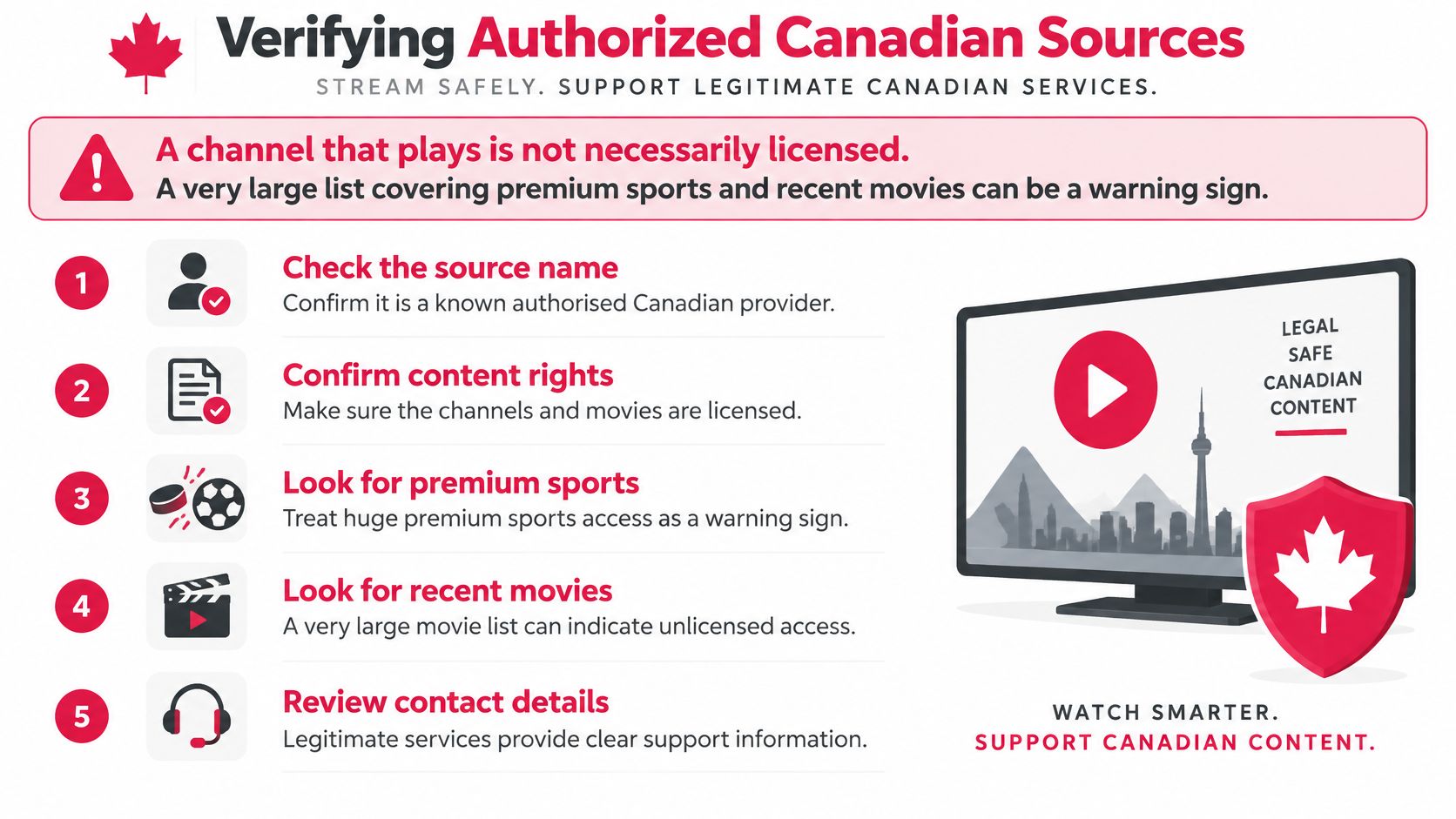
A channel that plays isn't necessarily licensed, and a very large channel count can signal risk rather than value. A list promising premium sports, recent movies, French and English networks and international feeds all at once should prompt more checks, not fewer. Canadian copyright analysis in the IIPA 2025 report on Canada identifies paid infringing IPTV and VOD services as an ongoing problem, and reports that visits from Canada to streaming sites associated with online piracy rose from 39% in 2015 to 77%, while visits to P2P sites fell from 51% to 16%. The traffic moved toward streaming. So did the risk.
The Rights Verification Checklist
- Name the distributor: Identify the broadcaster or licensed distributor in plain language. If the seller can't be tied to a named business, stop there.
- Confirm Canadian availability: Check that the channel is offered in Canada through the broadcaster's own site or a licensed provider, not only through the playlist you're holding.
- Read the commercial terms: Look for refund terms, privacy practices and a working contact route before you pay. Legitimate services publish them.
- Treat sports and recent movies as the highest-risk category: Premium live sports and new film releases carry the most valuable rights, so full access at a trivial price deserves the hardest questions.
- Be cautious with anonymous APKs and reseller-only lists: A legitimate broadcaster app has an identifiable publisher. An unnamed installer passed around by a reseller doesn't.
The visual below condenses those checks into a sequence you can run before importing anything.
If you're weighing the legal position in more detail, our guide to whether IPTV is legal in Canada sets out how authorization works for Canadian viewers.
When a Channel Disappears
Channels vanish for legitimate reasons too. Rights windows expire, feeds get reorganised, and distributors retire services. When one goes, check the distributor's own announcement rather than replacing the address with an unknown link someone posted in a forum. Keep your payment and subscription records, since they're what a refund or support claim stands on. If you suspect a service is distributing programming without rights, report it to the distributor whose content is involved or to the appropriate Canadian authority.
Practical rule: "Working" describes a stream. "Legitimate" describes a licence. Never let the first word answer for the second.
That distinction protects more than your conscience. Unauthorized sources disappear without notice, offer no refund route, and can expose the personal and payment details you handed over. A named distributor with published terms might still have an outage, but you'll have someone to contact and a record to point to.
How to Check a Playlist Before You Import It
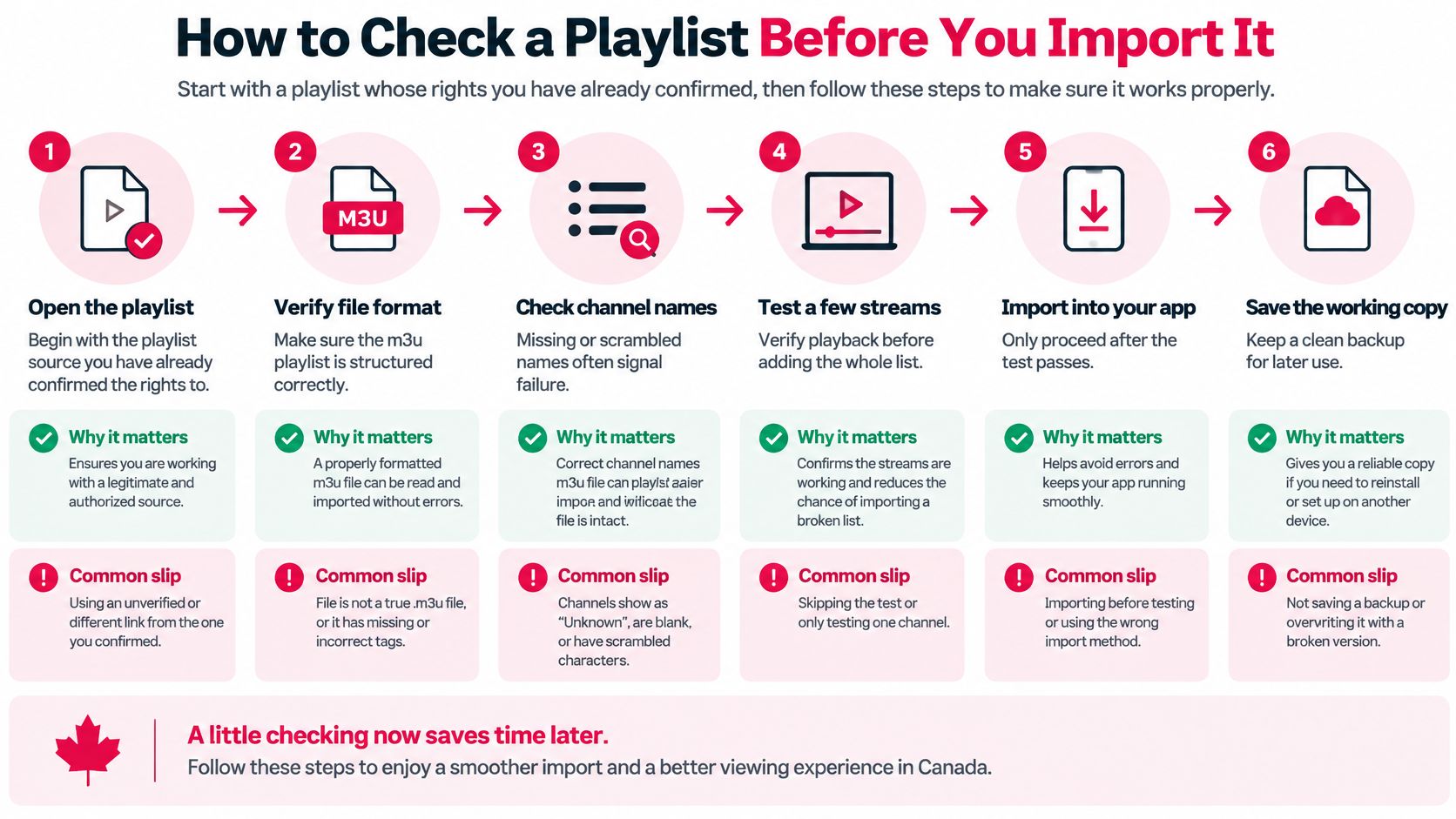
Run these checks only on a playlist whose rights you've already confirmed. The order matters, because each step rules out a class of failure that the next step can't diagnose. The technical baseline is clear in Apple's HLS authoring specification for Apple devices, which states that HLS playlists must be UTF-8 encoded without a byte-order mark and should be served with an HLS-compatible MIME type such as application/vnd.apple.mpegurl or audio/mpegurl. Most import failures trace back to one of those requirements being ignored.
The flow below shows the inspection sequence from opening the file to saving a working copy.
Six Checks in Order
- Confirm extension and encoding: The file should end in .m3u or .m3u8 and be saved as UTF-8 without a byte-order mark. The usual slip is a UTF-16 save, which imports with garbled channel names.
- Read it as plain text: Open it in a text editor and confirm every entry pairs an #EXTINF line with a URI on the next line. A missing URI leaves a blank menu item that looks like a broken channel.
- Test URIs from different groups: Paste a few addresses into a player or browser. A reachable address returns stream data, not an error page or a login screen.
- Check the HTTP content type: HLS playlists should arrive as application/vnd.apple.mpegurl or audio/mpegurl. A wrong type is a common reason players reject an otherwise valid M3U8 entry.
- Note authentication expiry: If addresses carry tokens, record when they lapse and set a reminder. An expired token produces the most confusing failure of all, a list that loads beautifully and plays nothing.
- Play one channel per group at peak time: Import, then test during the Canadian evening peak and note start-up time and buffering. Those notes become your evidence when you size bandwidth next.
The walkthrough below shows the same inspection logic applied on screen, so you can compare what you see in your own file against a worked example.
Bandwidth Needed for Each Stream Quality
A large channel count does not indicate how much bandwidth a stream needs or whether its source is authorized. Capacity depends on the quality of each active stream and how many screens are playing at once. As a practical planning range, allow 3–4 Mbps for 360p or 480p, 5–8 Mbps for HD, about 6 Mbps for advanced HD or FHD, and 25 Mbps for 4K UHD.
Reference Bitrates by Stream Quality
| Stream Type | Reference Bitrate | Planning Note |
|---|---|---|
| 360p or 480p | 3–4 Mbps | Suitable for a secondary screen on a limited connection |
| HD | 5–8 Mbps | Two concurrent HD streams need about 10–16 Mbps before overhead |
| Advanced HD or FHD | About 6 Mbps | Treat this as a reference figure, not a guarantee for every stream |
| 4K UHD | About 25 Mbps | One 4K stream can use capacity comparable to several HD streams |
The chart below compares these typical planning figures.
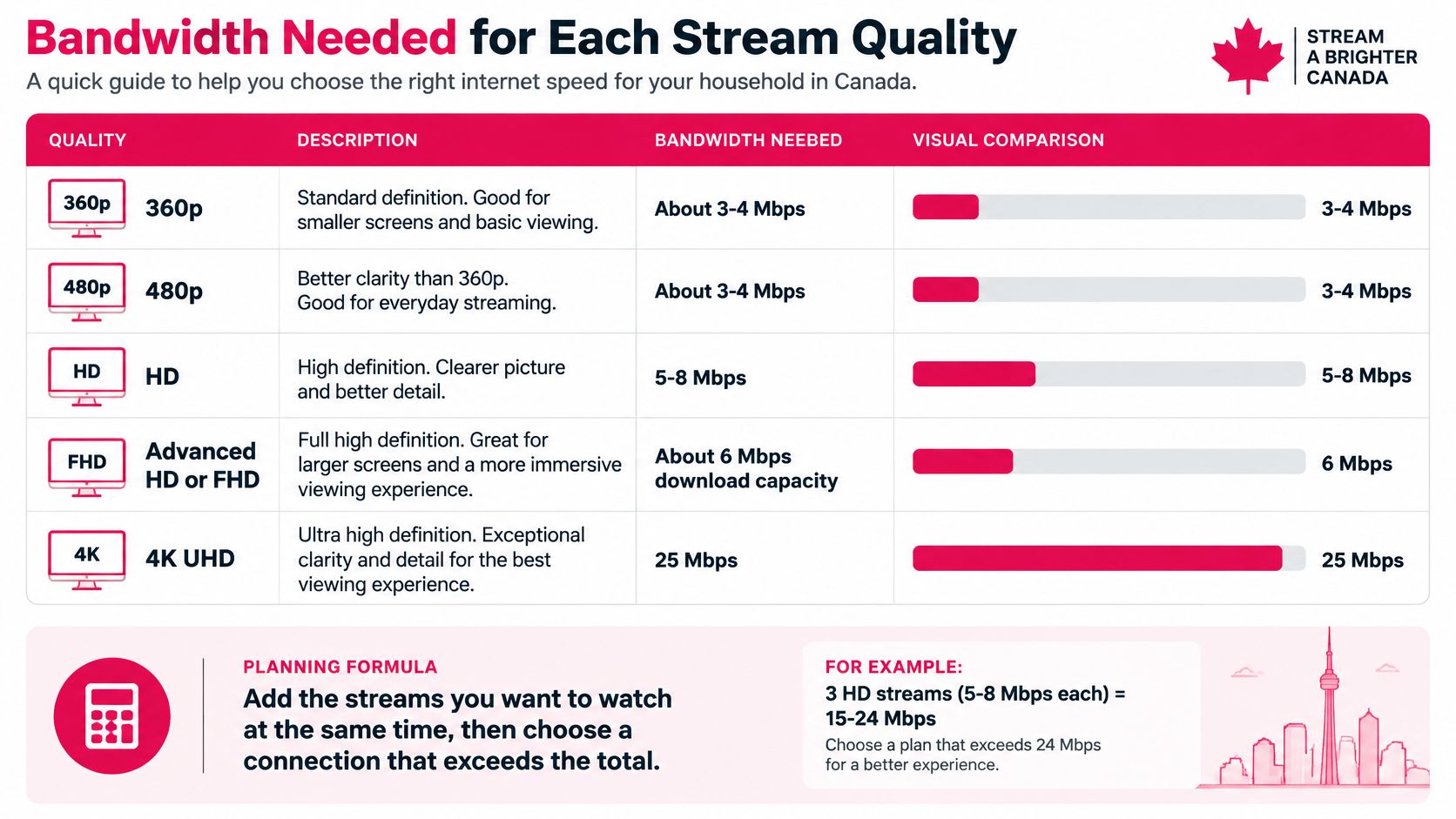
Add the bitrates of concurrent streams, then leave extra capacity for Wi-Fi contention, retransmissions, guide and API traffic, and other household use. Four HD streams at 8 Mbps each require 32 Mbps of media throughput before overhead. A connection that handles one screen may therefore struggle when several people watch at once. A single 4K stream at about 25 Mbps can also leave less room for other devices. See the guide to IPTV internet speed requirements for more household-planning context.
For Canadian households, a plan's advertised speed is not the same as capacity consistently available to each stream. Rural access can also differ from urban access, so test playback during the hours your household is most likely to watch. Count simultaneous viewers, choose a lower quality for secondary screens if needed, and compare peak-time performance with the bitrate ranges above.
The same capacity accounting applies to sending video: configure one encoder for multiple destinations and each destination draws on the available upload capacity. For viewing, the key calculation remains the combined demand of active streams, with room left for the rest of the household's internet use.
Device and Player Compatibility by Platform
Compatibility is conditional, and the condition changes by platform. A player can support M3U imports yet stumble on a particular HLS entry. A device can decode 1080p smoothly and struggle with 4K. Check the combination you'll use.
Device and Import Route by Platform
| Platform | Import Route | Deciding Condition |
|---|---|---|
| Fire TV, Android TV and Google TV | Compatible player from the official app store, import by URL or file | Built around the player's import options |
| Samsung and LG Smart TVs | Set by the TV's app store and OS version | Check the player listing for the exact model |
| Android phones and tablets | Local files and URLs in most players | Device decoding limits decide whether 4K is possible |
| iPhone and iPad | Set by App Store availability in the region | Confirm the player is listed for Canada |
| Windows and Mac | Desktop players import files directly | Useful for isolating a playlist fault from a device fault |
On Fire TV, Android TV and Google TV, install a compatible player from the device's official app store and import your playlist by URL or local file where the player allows it. Players such as TiviMate and similar Android TV apps are built for remote-first navigation, which matters once a channel list runs to hundreds of entries. On Samsung and LG Smart TVs, support is set by the built-in app store and the operating system version on your specific model, so confirm the player's store listing names your model before you rely on it.
Android phones and tablets generally handle both local files and URLs, but the hardware decoder decides your ceiling, so an older tablet may top out below 4K no matter what the playlist offers. On iPhone and iPad, availability comes down to whether the player is listed in the Canadian App Store. On Windows and Mac, desktop players import files directly and give you the fastest diagnostic route, and our guide to playing M3U playlists with VLC in Canada shows that setup step by step.
Close with a two-device test. Play the same channel on two devices on the same network. If only one fails, the device or its player is the likely cause, and you've just saved yourself from rebuilding a playlist that was never broken.
Organizing Channels by Category and Language
A long undifferentiated list is where usable playlists go to die. Nobody scrolls through several hundred entries to find the evening news, and in a bilingual household the problem doubles. Organise the file so the menu does the finding for you.
A Grouping Scheme That Scales
- National and regional Canadian channels: Your local and national feeds in one place, since these get daily use.
- Quebec French programming: A parallel group rather than a filter, so French-speaking viewers aren't scrolling past English listings to reach them.
- English sports, news, kids and family, movies, international: One group per viewing habit, not one group per source.
Consistency makes the scheme work. Use one group-title format throughout, one channel-name format, and a unique ID for every channel so electronic programme guide data can match the right entry. When names drift, guide matching drifts with them, and suddenly the schedule for one channel sits on top of another.
Here's the duplicate problem, worked through once. Say a Canadian news channel and an international channel carry similar names, and the file also holds the Canadian feed twice, once in HD and once in a lower rendition copied from an older list. Keep one entry per channel. Mark the preferred quality and language in the name itself using a pattern such as Channel, Language, Quality, so a label might read as the channel name followed by EN and HD. Separate the two news channels by that clear label, not by their position in the file, because position changes every time you edit and labels don't.
For French and English households, build parallel groups with parallel names. A viewer looking for a Quebec regional feed should find it under the same category structure as the English equivalent, without learning two systems. International channels belong in their own groups by language or region, which keeps them discoverable without burying Canadian feeds.
Housekeeping keeps the structure honest. Remove dead entries monthly, record the date of each edit at the top of the file or in the filename, and keep a backup of the last working version before you change anything. When an edit breaks playback, and eventually one will, you'll restore the backup in a minute instead of rebuilding groups from memory.
Troubleshooting Playback Problems
Most failures announce their cause if you read the symptom carefully. A playlist that imports with no channels has a different problem from a channel that starts and stalls, and applying the second fix to the first fault wastes an hour. Start with the table, then work the row that matches.
Playlist Symptoms, Causes and Fixes
| Symptom | Likely Cause | Fix |
|---|---|---|
| Playlist imports but shows no channels | Wrong encoding or extension | Save as UTF-8 without a byte-order mark and use .m3u or .m3u8 |
| Channel loads then buffers | Bandwidth or Wi-Fi limit | Use a wired connection or 5 GHz Wi-Fi and pause large downloads |
| Channel worked earlier but now fails | Expired token or moved stream address | Re-import the current playlist from the source |
| Guide shows wrong programmes | Guide IDs do not match channel IDs | Compare with the broadcaster's schedule, guide accuracy is not guaranteed |
Playlist imports but shows no channels. This is almost always encoding or extension, and it's a one-step repair. Re-save the file as UTF-8 without a byte-order mark, confirm the extension, and import again. Don't touch network settings for this symptom. The player never got as far as the network.
Channels load and then stall. Now you're looking at bandwidth or Wi-Fi. Move the television device to a wired connection or the 5 GHz band, pause large downloads elsewhere in the house, and test on one device only. If the TV alone misbehaves while phones on the same network are fine, this explanation of why your TV won't connect to WiFi covers the device-side causes worth ruling out before you blame the stream.
A channel worked last week and fails now. Tokens expire and addresses move. Re-import the current playlist from your source rather than editing the old file by hand. The list loading correctly while nothing plays is the signature of an expired token, and no amount of cache clearing renews it.
The guide shows the wrong programmes. Guide data matches channels by ID, and when the IDs in your playlist don't match the guide provider's IDs, schedules land on the wrong channels. Compare against the broadcaster's published schedule to confirm which is right, then correct the ID. Guide accuracy isn't guaranteed by any player, so treat the broadcaster's own listing as the authority.
Timing separates these faults, too. Encoding and extension fixes take minutes. Provider-side address changes can take longer, and there's nothing at your end that speeds them up.
If the same channel fails on every device and every network you try, the source is the problem.
At that point, stop changing settings. Contact the provider or distributor in writing, state the channel, the devices you tested and when the failure started. A written record gets a clearer answer than a support chat that vanishes when you close the window.
Confirm the Source Before You Subscribe or Import
A playlist that plays is not proof that its channels are authorized. Check who provides the stream and what rights they claim before importing a file or paying for access. A large channel count makes that check more important, not less.
Treat installer safety and content rights as separate questions. An APK from an unknown source can put a device at risk; examples of Trojan infections illustrate why a file's promise of entertainment is no guarantee of safety. A recognizable name and public website give you details to assess, but do not establish channel rights by themselves.
WATCHING FORCES offers Canadian viewers live television channels, movies, sports coverage and international entertainment through internet-based IPTV streaming. Its website includes a Channels List page, a VOD Library and an Installation Guide. Review the channel options and device information, then check the package that suits your household. Setup involves selecting a package, receiving login credentials, installing an IPTV player application, entering the activation information and starting to stream.
Visit WATCHING FORCES to review current channel packages and the Channels List before subscribing. For questions about setup or subscription options, contact the service through WhatsApp. Confirm the source and the terms before you import a playlist.

No Responses